
This article explains the functionality of the Intellipunch clock.
- Timezones
- Authentication
- Employee consent for use of bio-metrics
- Punch buttons
- Punch capture
- Picture Proof
- Assignments and Levels
- Pay Categories
- Shifts
- Languages
- Employee consent for use of bio-metrics
- Tips
- Questions
- Lunch Lockout
- Shift Lockout
- Automatic Logout
- Other settings in Kiosk Config
- Employee Access
- Delete employee authentication data
- Branding
- Connectivity Indicators and Offline functionality
- Cross-device functionality
- Power over Ethernet
- Admin Menu
- Mobile Device Management (Airdroid)
App Download
 | Click here to access the APK file download to install on clock hardware. |
Features and Configuration
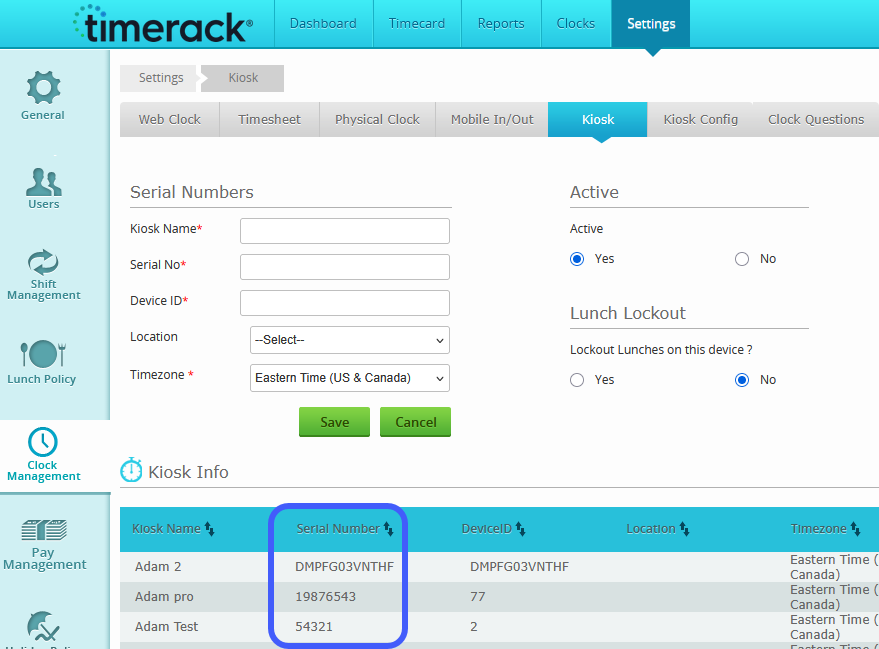
Intellipunch is configured in the Kiosk and Kiosk Config pages of the Clock Management section in client portal Settings. Kiosk must be enabled in Billing (Admin) to expose kiosk settings.
Each device is identified by the app based on the Serial Number in the portal, which is entered as the Username in the app. For more information, see article Activate Kiosk Mode in Timerack Mobile App.
Timezones
| Timezone is configured individually for each device in Settings>Clock Management>Kiosk. Punches originating from an Intellipunch display on the Timecard in the kiosk timezone. | 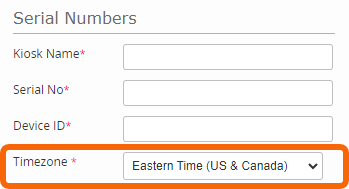 |
| The home screen time display reflects the timezone configured in the portal. | 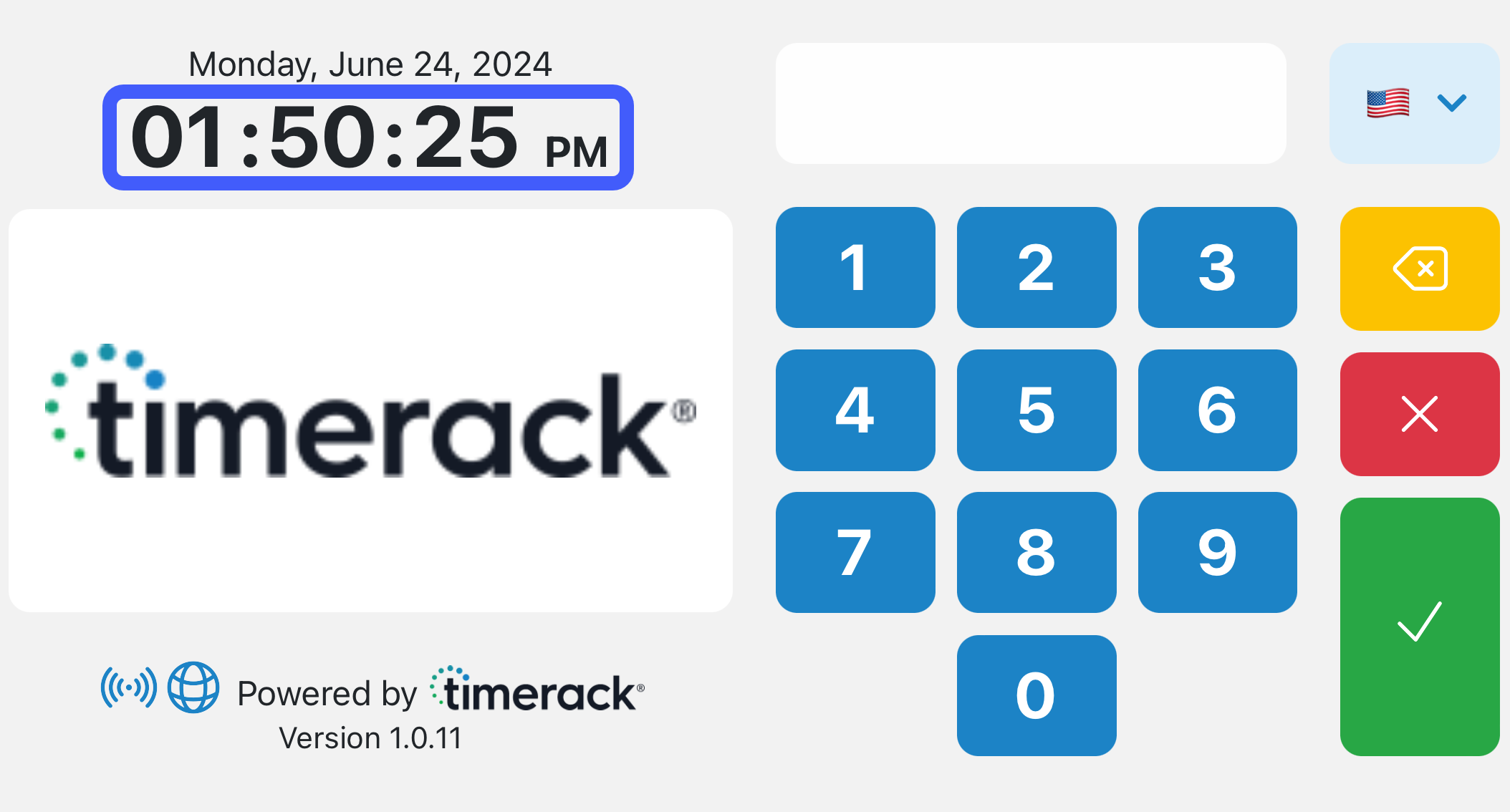 |
| When an employee is logged in, the time display above the punch buttons and in Last Punch Information reflects the Kiosk timezone. | 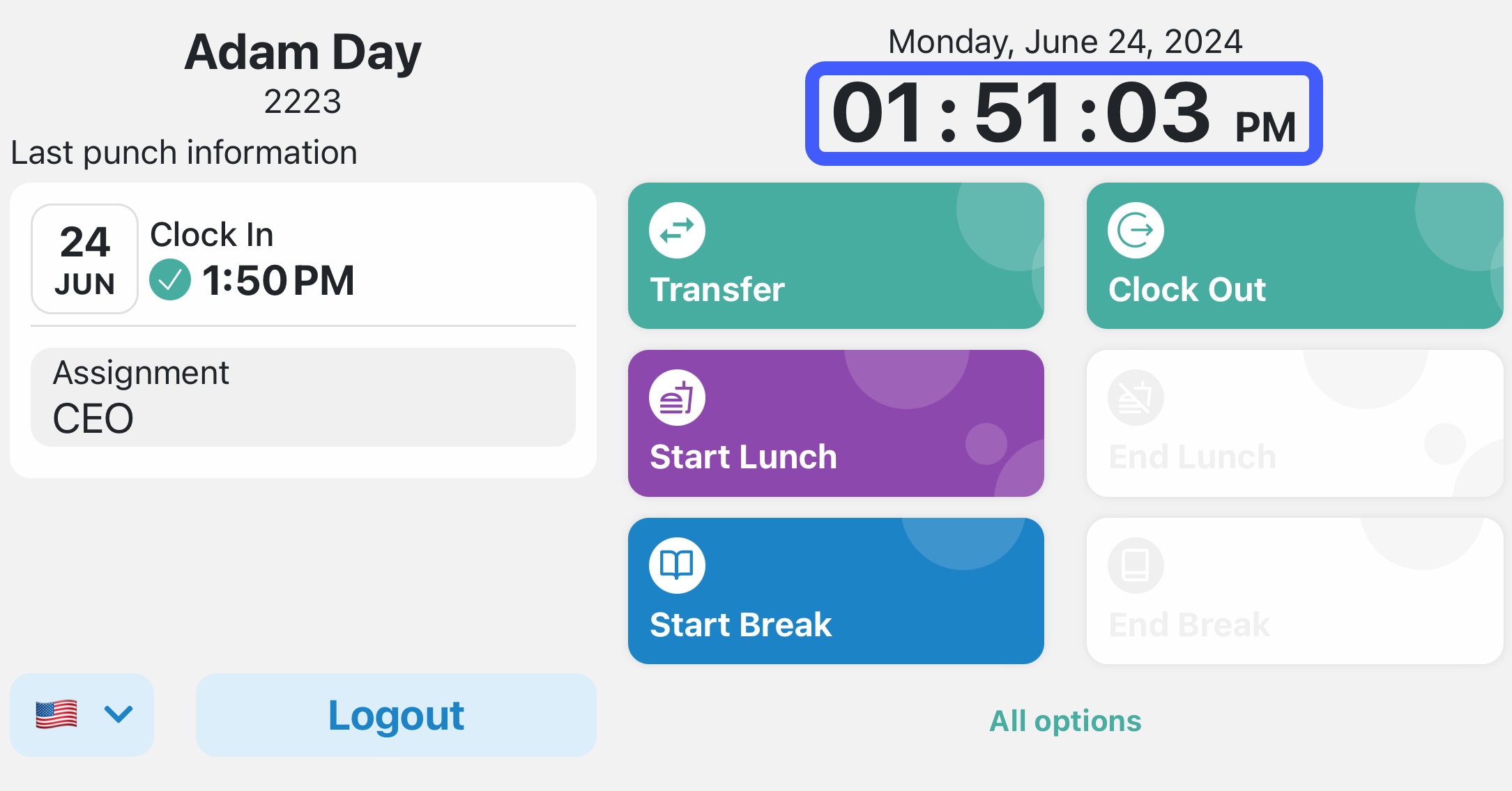 |
Authentication
| The Intellipunch supports two forms of bio-metric authentication, Fingerprint and Facial Recognition, as well as Proximity Badges and Password Entry. Self-registration is available for all methods except Password, which must be added on the Employee Profile in the portal. | 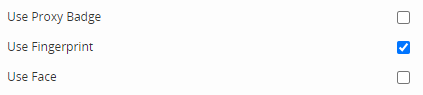 |
When registering, employees are required to enroll in at least one method enabled in Kiosk Config; users cannot proceed with punching until enrollment is complete for at least one enabled method. | 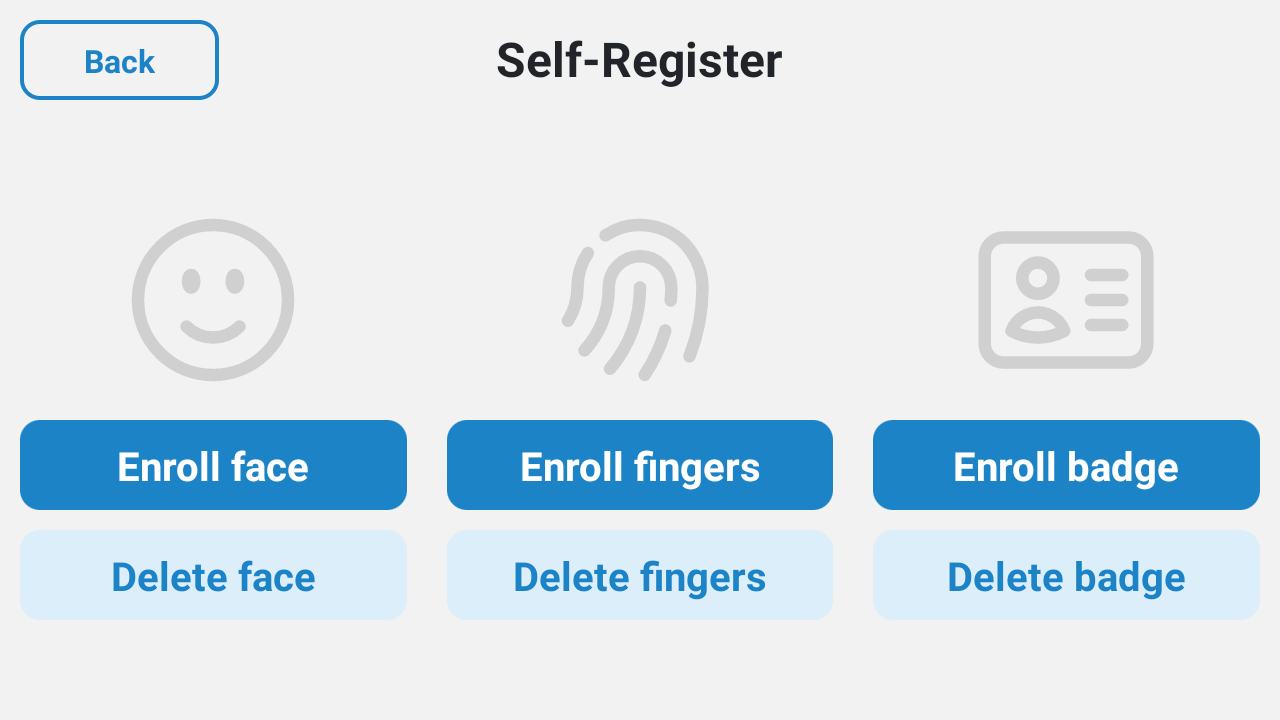 |
Employees can Self-Register a temporary Card Number which will be valid for one day (25 hours). The temporary Card Number is stored locally on the device on which it was registered; it will not work on other devices linked to the client. Punches submitted using a temporary Card Number appear as Unrecognized Punches in the portal in Clocks>Punch Management and will remain there until the Employee Profile is created and a portal user reprocesses the punches with the employee's permanent Card Number. Temporary Card Number is not supported when Password or Bio-metrics are enabled.
| Enable Allow Unknown Punches to allow temporary Card Number registration. | 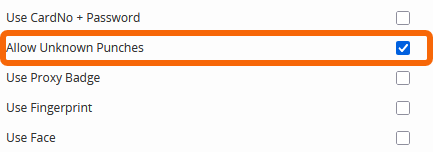 |
See article Self-Register a Card Number on Intellipunch and Kiosk
Employee consent for use of bio-metrics
If any bio-metric authentication methods are enabled in Kiosk Config, employees will be presented with a consent form when they register. The consent form will display in the language that the employee selects on the previous screen. The employee must agree to the terms in order to register. | 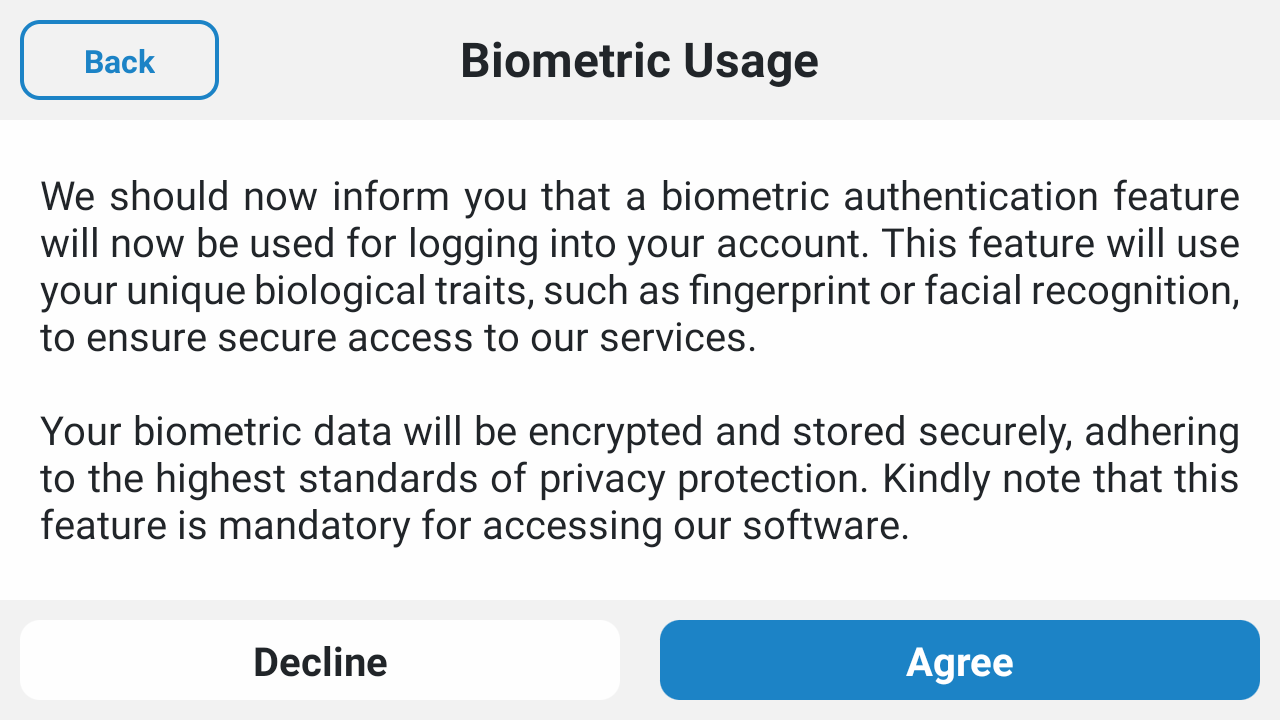 |
Punch buttons
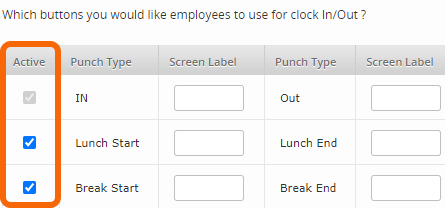
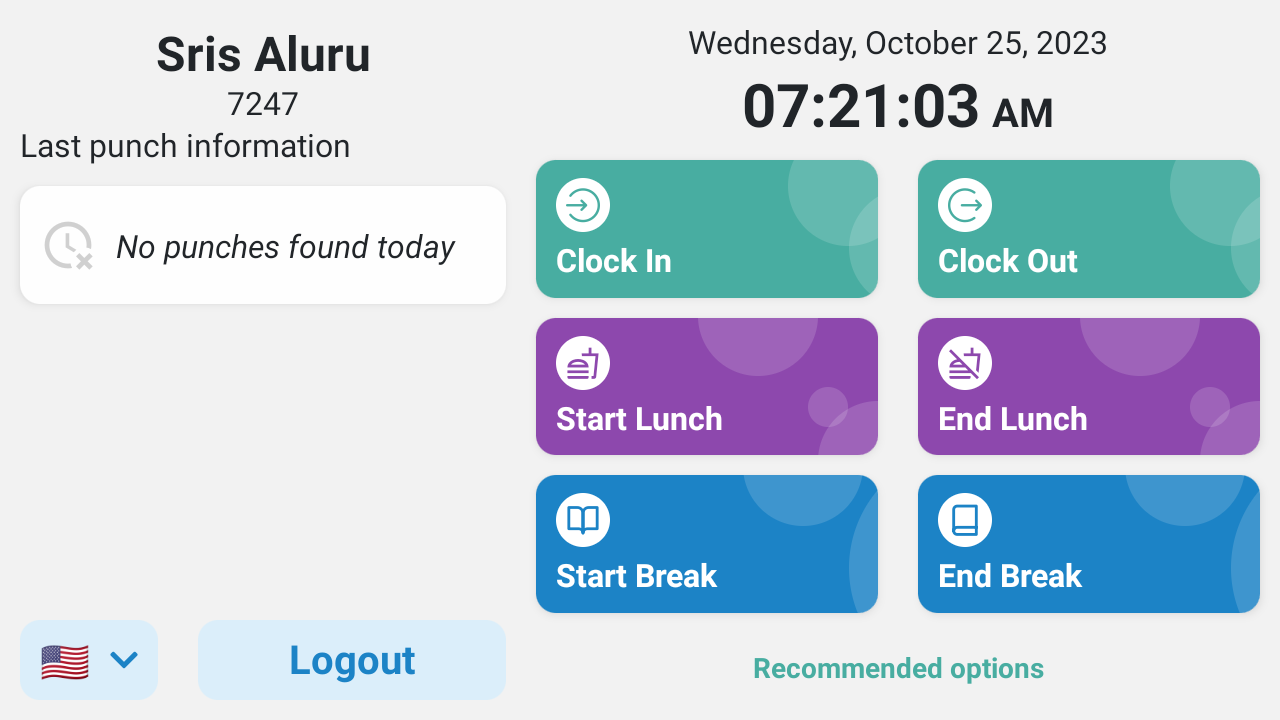
The Active checkbox determines which buttons are displayed on the punch screen. Buttons can be customized by entering the desired text in the Screen Label fields.
 |  |
There is no setting to enable or disable the Transfer option. Whether Transfer displays depends on the rest of the portal configuration and individual employee data. | 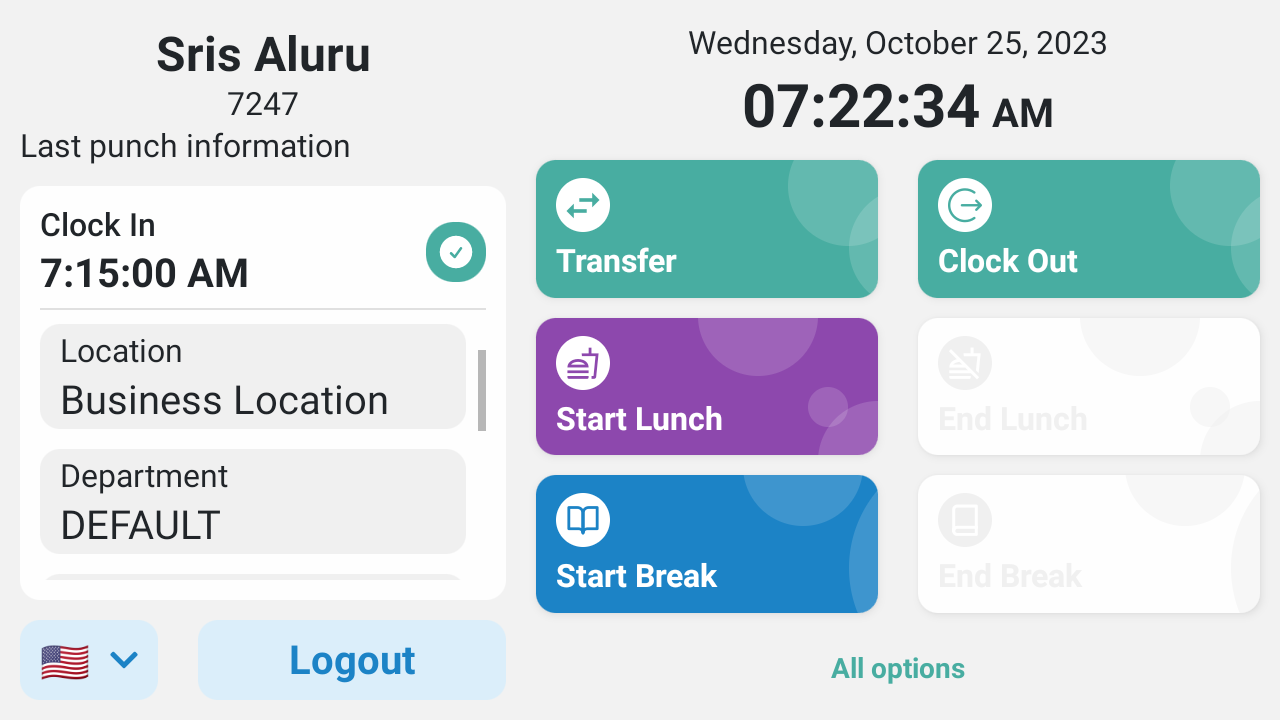 |
| If the Swipe and Go feature is enabled, the punch menu does not display. Instead of the punch menu, a pop-up window displays which asks the user to confirm that they want to punch. If the user confirms, the punch is immediately recorded. Swipe and Go also removes all other selection options and survey questions. If Picture Proof is enabled, a photo will be captured with each submitted punch. | 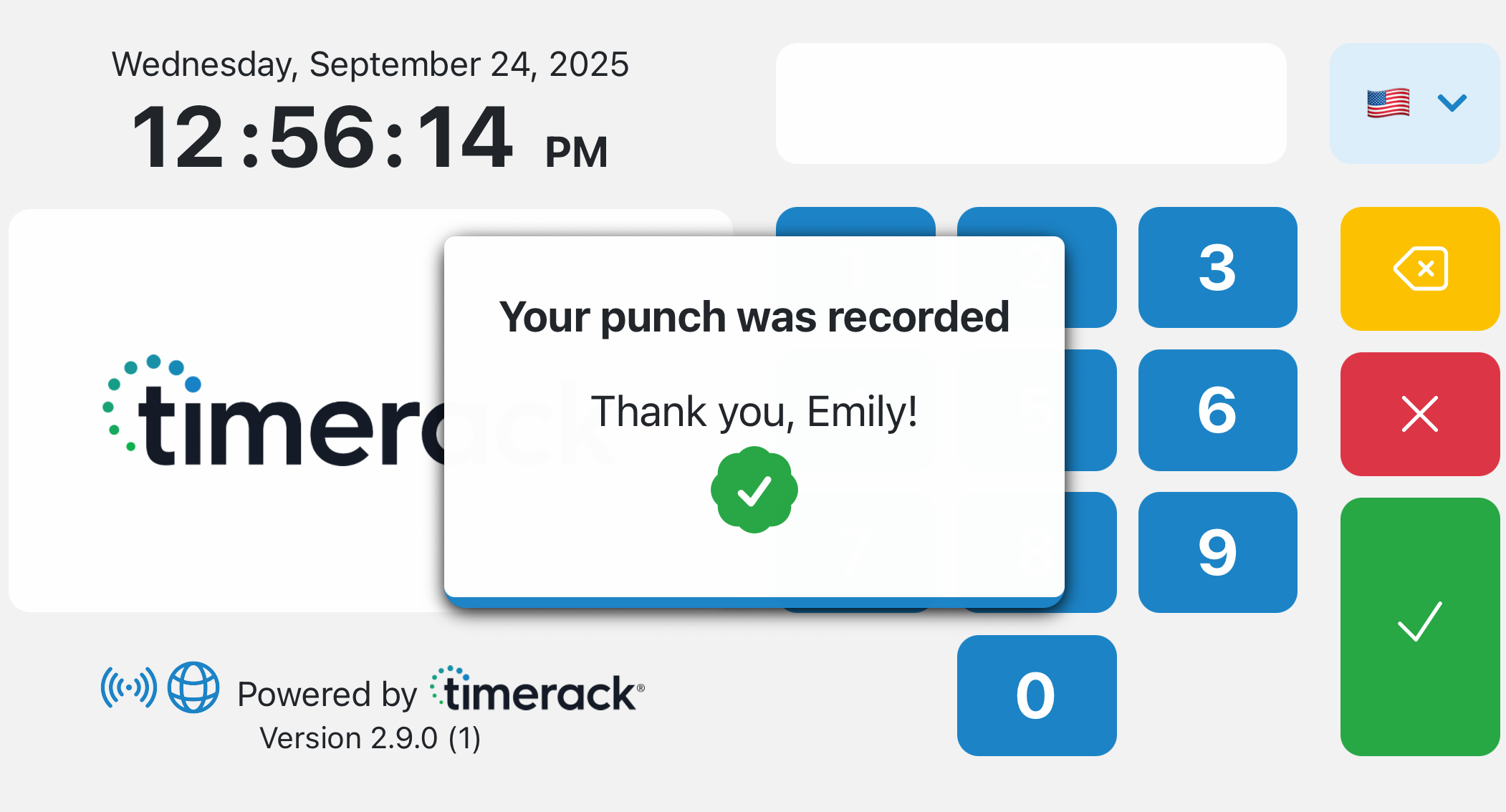 |
Punch capture
If completing initial registration, the punch time will be the time at which the employee entered their Card Number. For employees already enrolled, the punch time for all punches is captured as the time at which the employee logged in, with the following exceptions:
1) If an employee logs in during an active Lunch Lockout period, a Lunch End punch is captured as the time that the punch was submitted.
2) When Swipe & Go is enabled, all punches are captured as the time that the punch was submitted.
Picture Proof
The Picture Proof feature enables Intellipunch to capture a photo of the employee when they submit a punch. When Picture Proof is enabled, selecting any of the punch types will activate the camera and automatically capture a photo. |  |
Punch photos are accessed on the Timecard by clicking on the Day/Date for the applicable punch. | 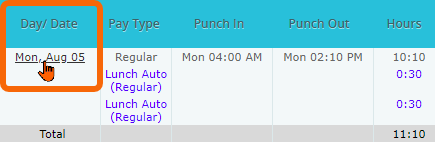 |
Assignments and Levels
There is no setting for enabling or disabling selecting and transferring Assignments. If the Assignments feature is enabled for a portal, the employee has >1 active assignment, and the Clock Default Level feature is not enabled, they will be prompted to select an Assignment when they punch in, and the Transfer button will be available while they are punched in. | 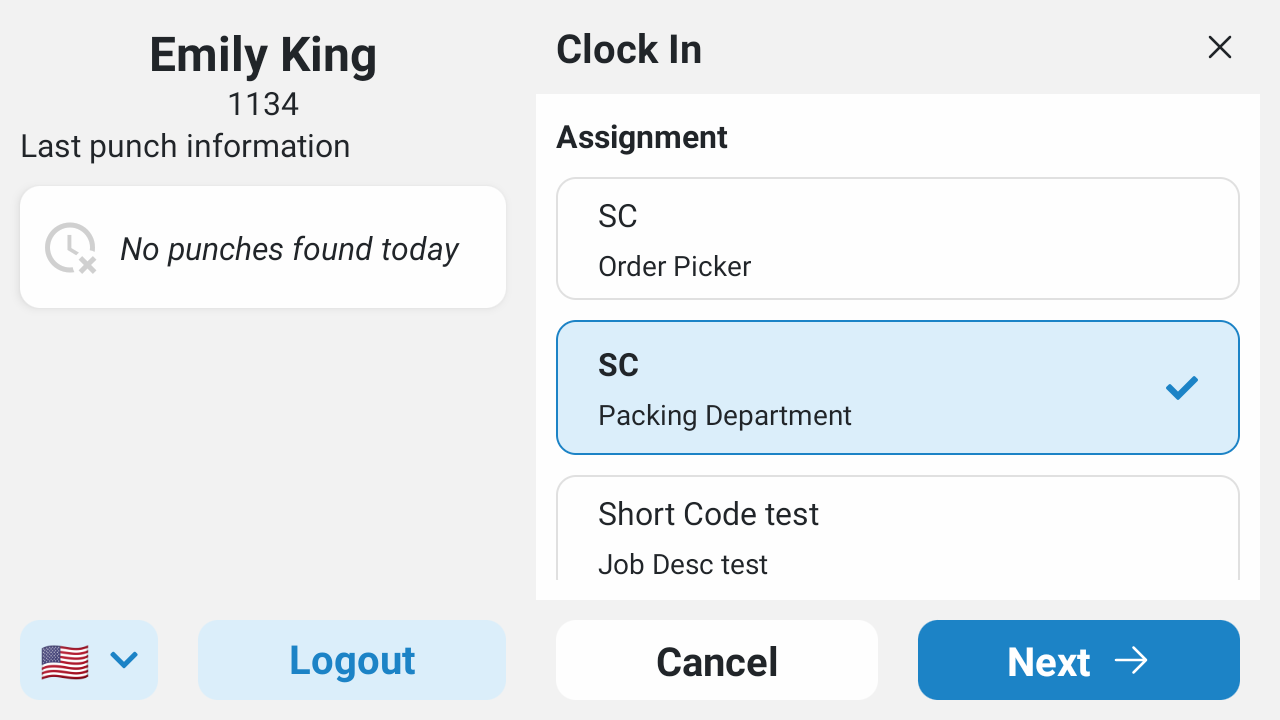 |
Updates to Level Name (Settings>General>Organization Structure>Manage) reflect automatically in the app when the change is saved. If a Screen Label (Settings>General>Organization Structure) is modified, the change will not reflect automatically. To push the Screen Label update to the app, go to the Kiosk Config page and click Save. This is necessary because the Screen Labels are stored in the database where there is no ModifiedOn column, and therefore no "event" is triggered when they are updated.
Pay Categories
| Mark the Hourly checkbox to allow employees to select a Pay Category when punching in and transferring. Active Pay Categories configured for Hours and In/Out will be available to select when there is >1. | 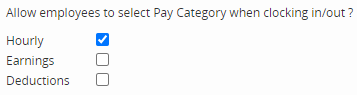 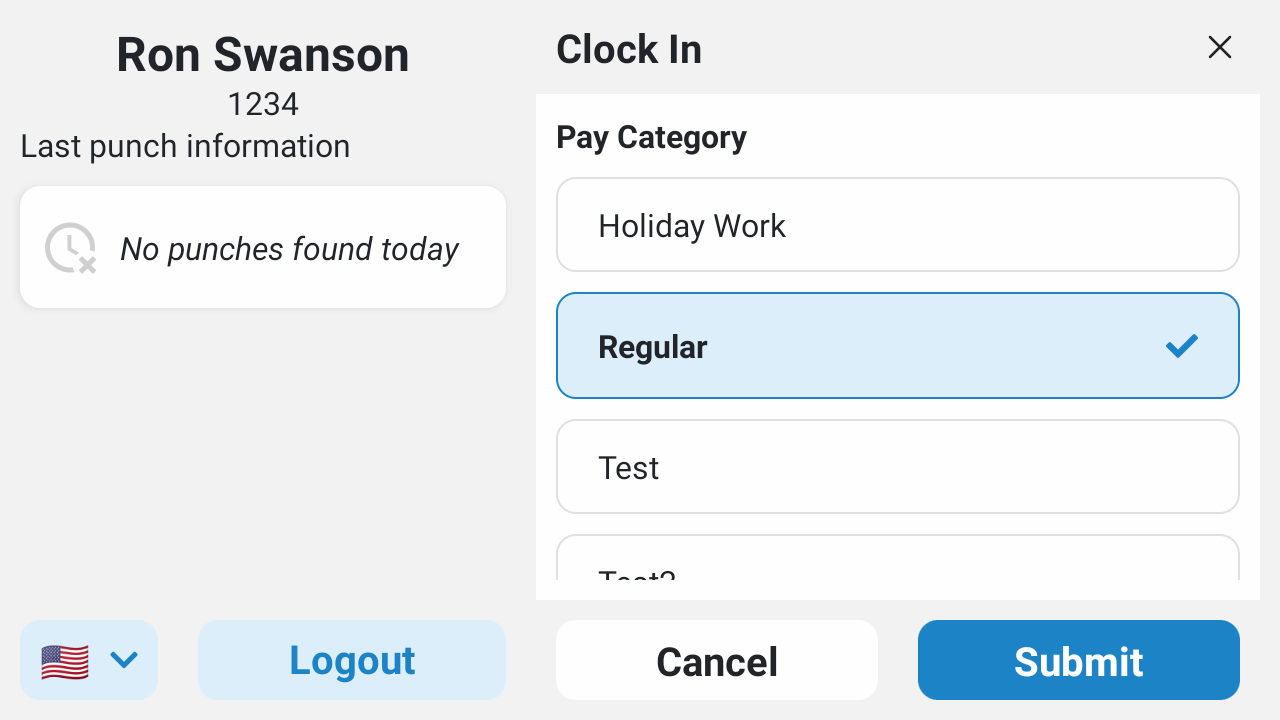 |
Shifts
| Allows employees to select a Shift when they punch In and Transfer. Employees can select any shift marked as Active in Settings>Shift Management. |  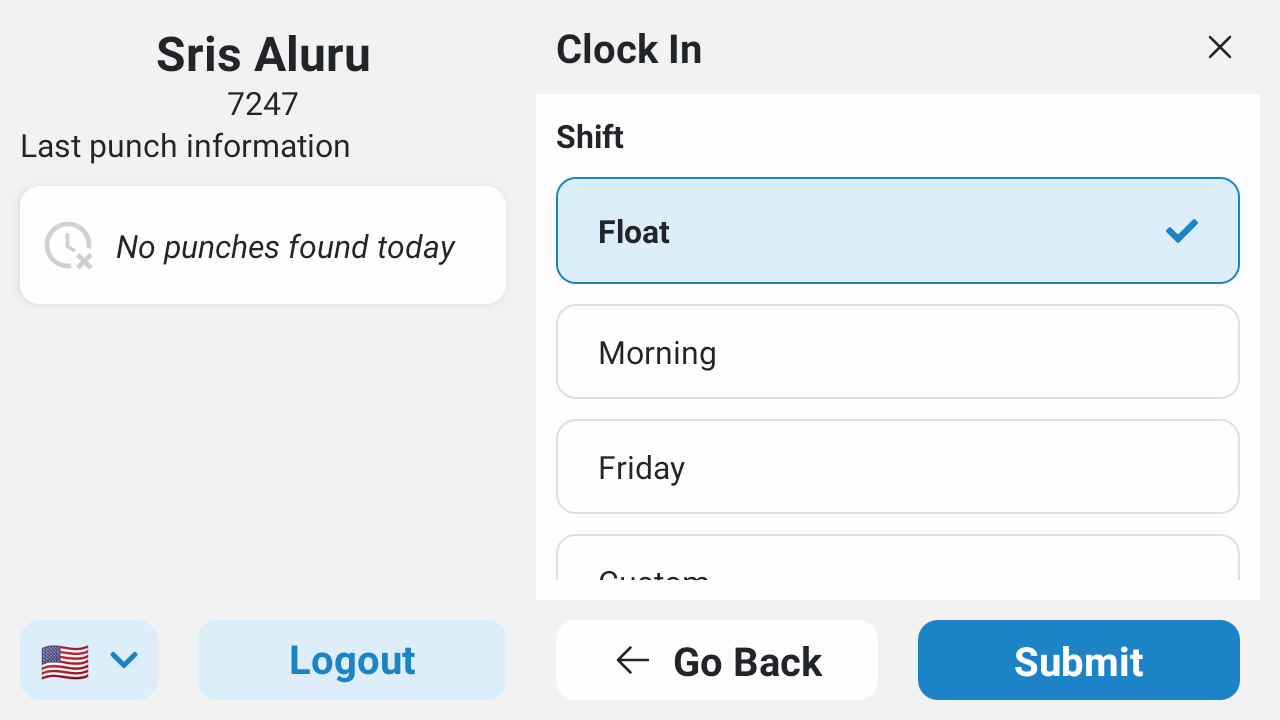 |
Languages
There are two language settings: clock home screen and employee. The language selected on the home screen determines the language of all text displayed prior to when a user logs in. The home screen language can be changed by any user at the clock using the dropdown in the upper right. | 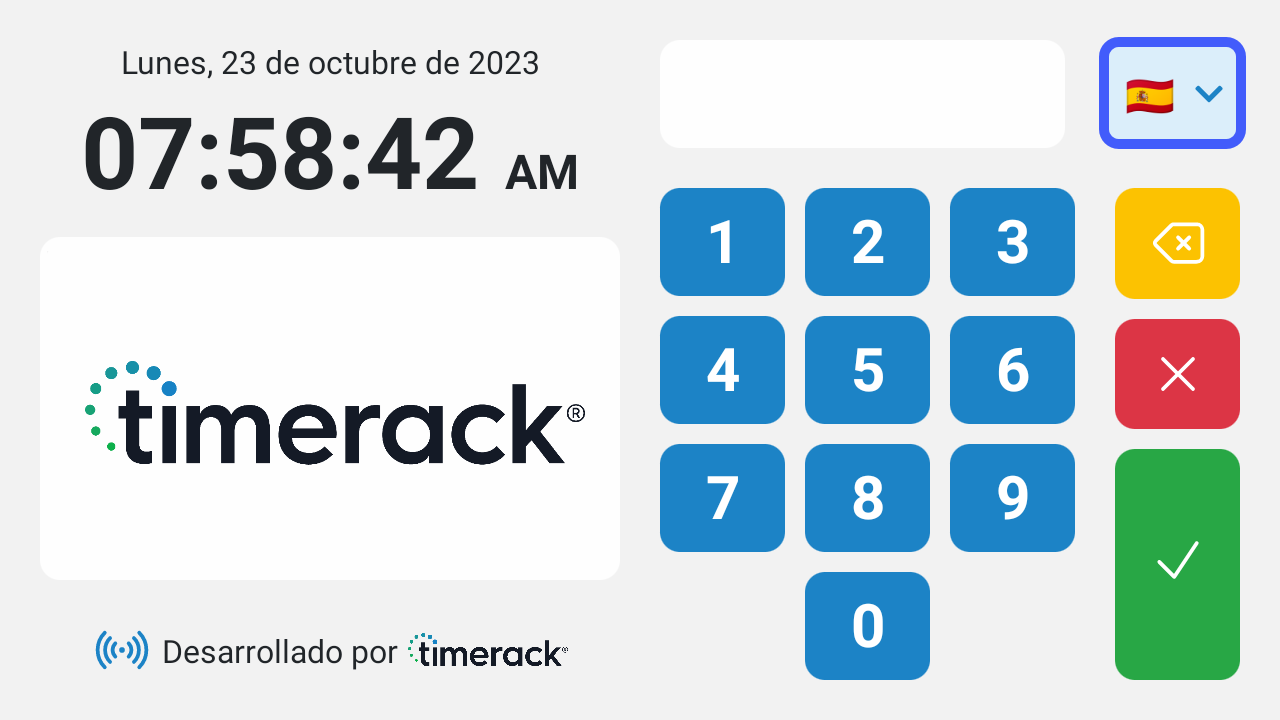 |
Employees are prompted to select their preferred language during initial registration. Employees can also update their language setting from the punch screen at any time. The language selected by the employee at registration or when logged into the clock sets the Preferred Language field on their Employee Profile in the portal and vice versa. | 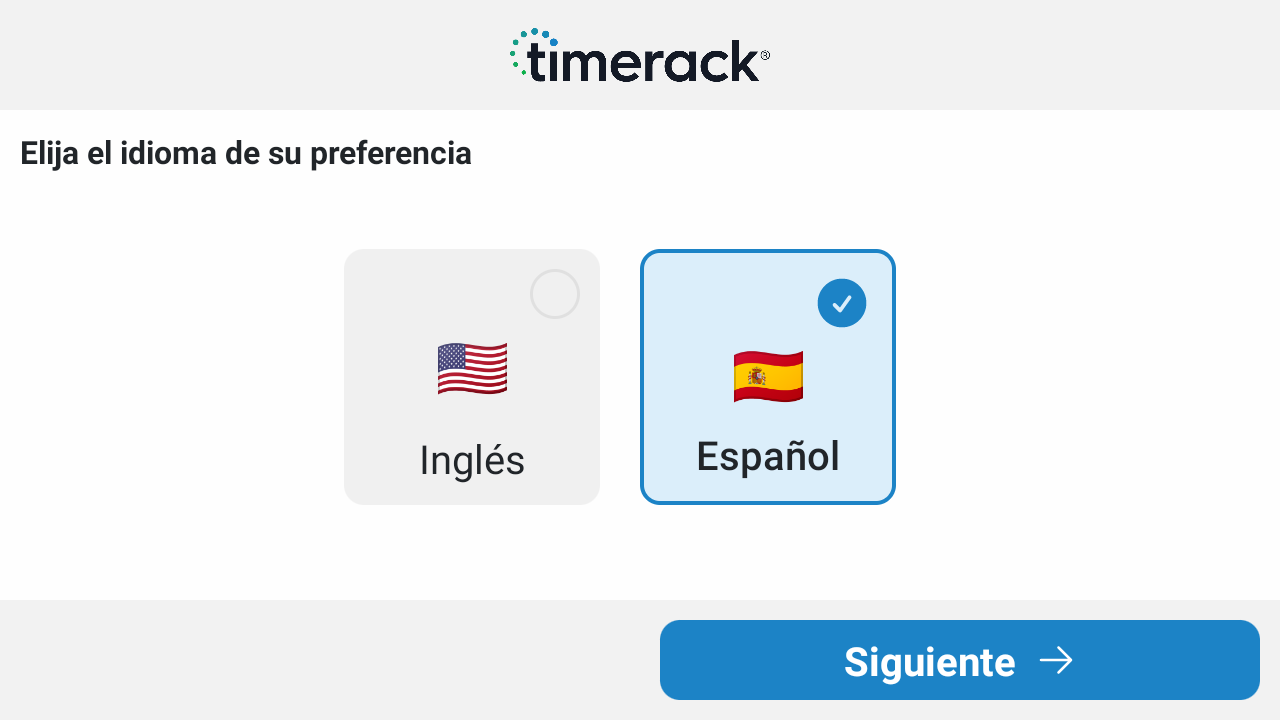 |
Tips
| If the Tips feature is enabled, employees will be presented with a keypad to enter tip amounts when they punch Out. The employee is required to enter a value when tips are enabled; enter "0" if no tips were received. Entered tips are populated into the "$$" field on the employee Timecard. |  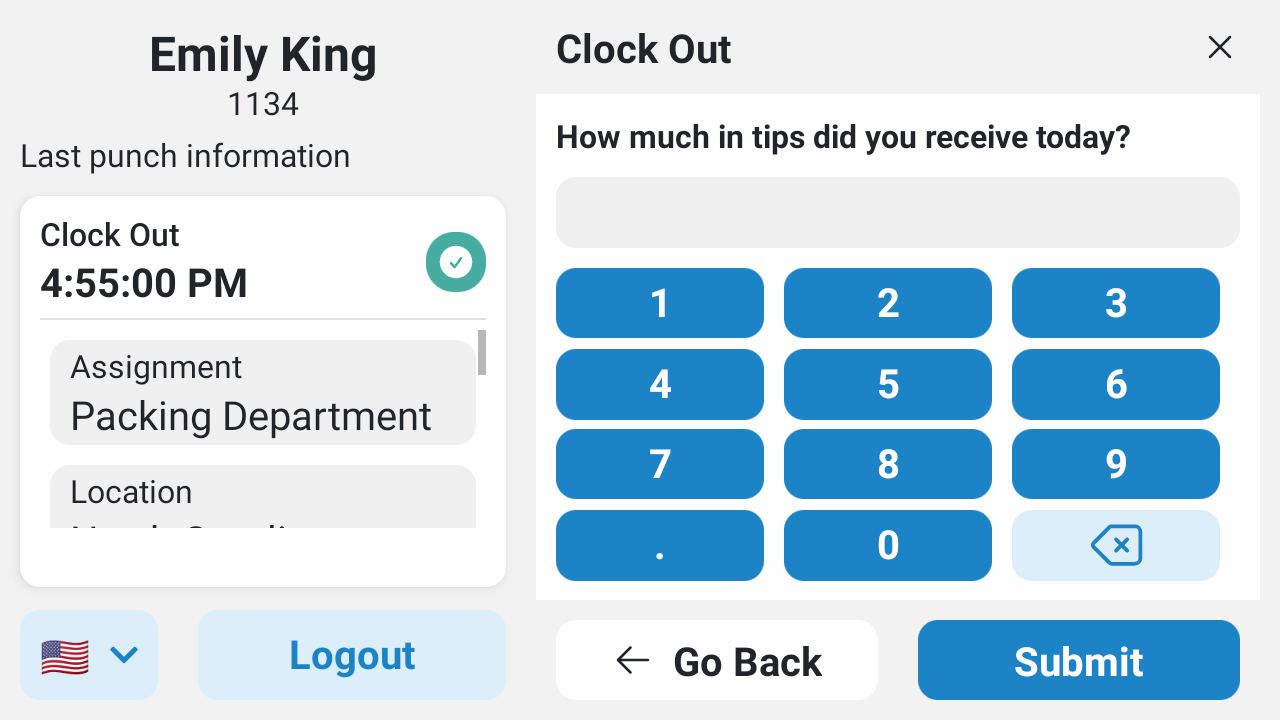 |
Questions
| If Questions are enabled, employees are required to answer a survey when they punch in and/or out. Questions do not respect the employee's Preferred Language. Questions are configured in Settings>Clock Management>Clock Questions. |  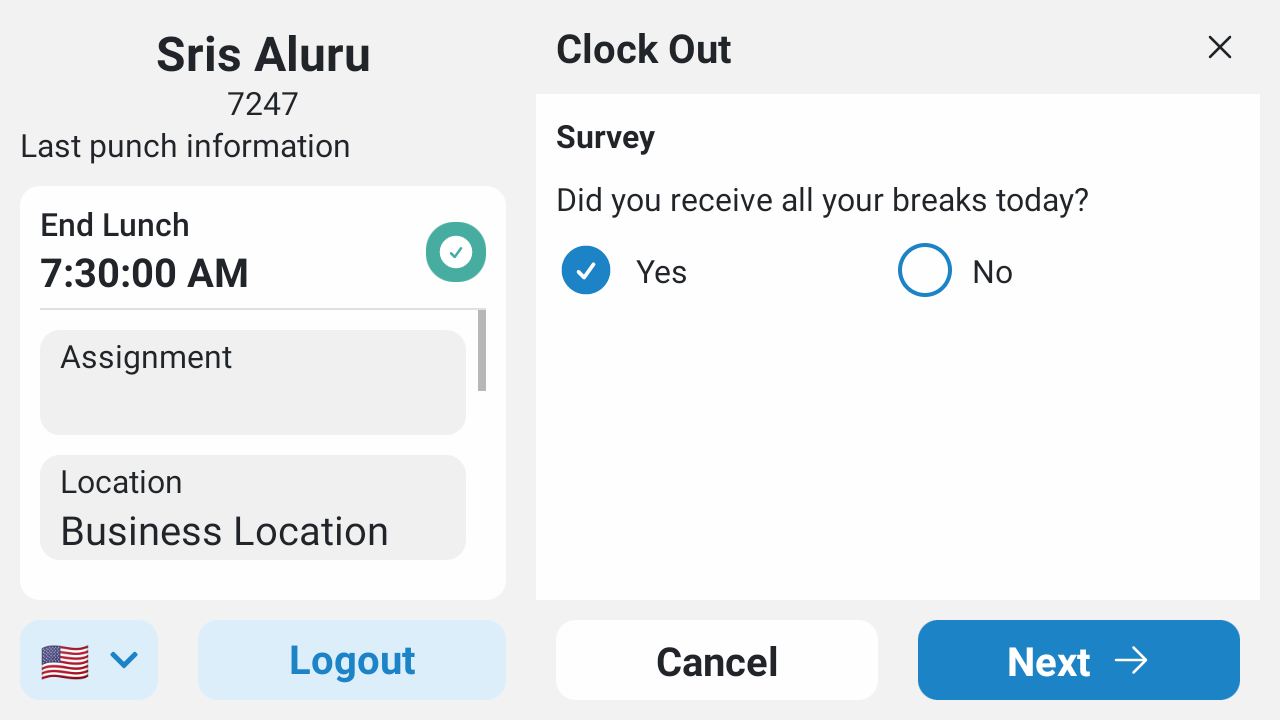 |
Lunch Lockout
| Lunch Lockout in Kiosk Config is the only setting that controls the Lunch Lockout feature; disregard the Lunch Lockout option on the Kiosk tab. Lunch Lockout applies across all Intellipunch clocks and the Timerack mobile app, as long as all devices are online. If a user starts Lunch on one device (Intellipunch or Mobile app) and then logs in on a different device (Intellipunch or Mobile app) during the lockout period, Lunch Lockout information displays instead of the punch buttons. | 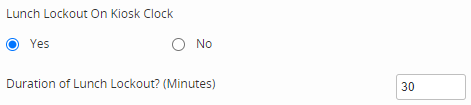 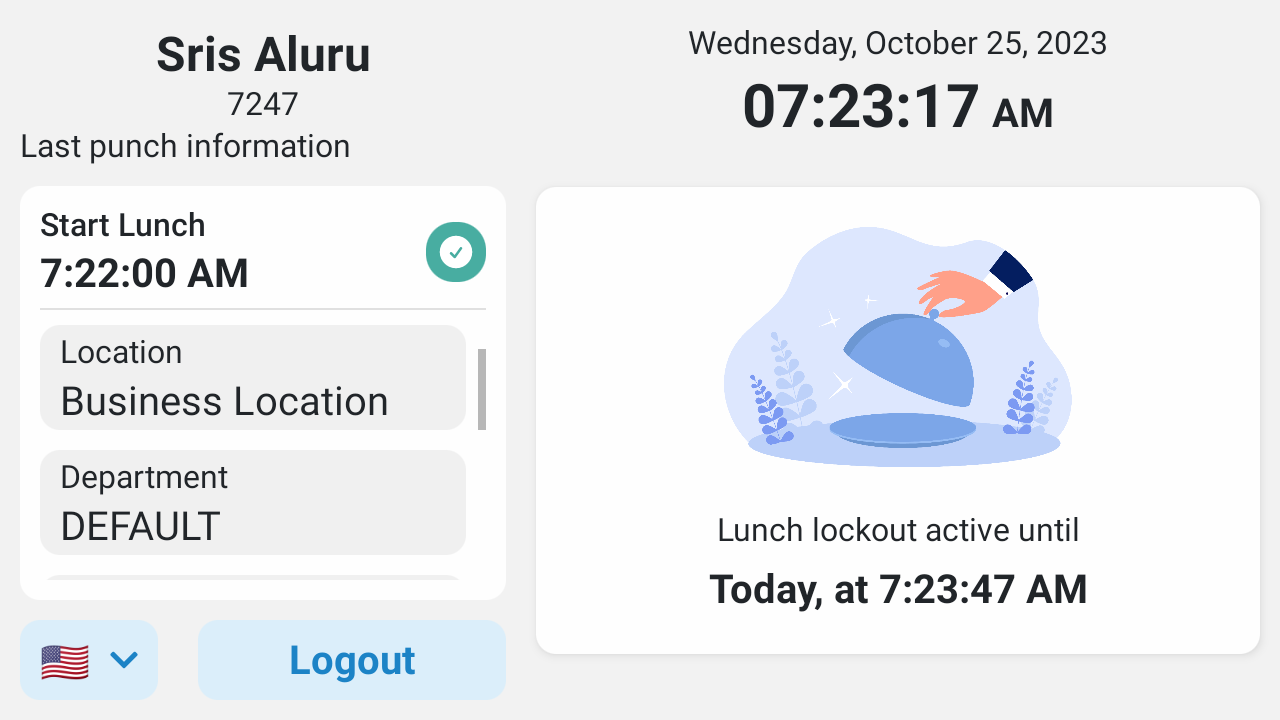 |
Shift Lockout
| See Shift Lockout | 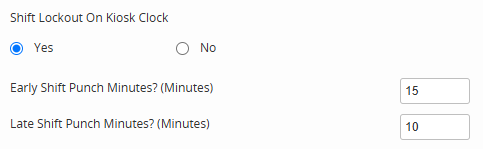 |
Automatic Logout
| The Auto Log Out setting in Kiosk Config applies when employees have already enrolled the required authentication methods or none are enabled. Auto Log Out ends the employee's session if they log in and do not punch after the specified number of seconds (e.g., log in and then walk away without submitting a punch). | 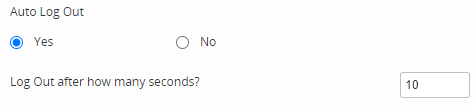 |
The immediate automatic log out upon punch submission is not configurable and not impacted by this setting.
If the Self-Registration workflow is started and no activity is detected on the device for 60 seconds, the session will be automatically ended and the employee will be required to restart the Self-Registration process.
Other settings in Kiosk Config
 | Has no known impact. |
 | Photo will be captured with the submitted punch (visible on Timecard). |
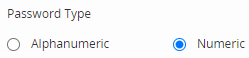 | Non-functioning (is from previous kiosk app). |
Employee Access
Only users with an Employee Profile in Active Status and Kiosk enabled can access Intellipunch. If Kiosk is active in Billing (Admin), Kiosk is enabled by default when the Employee Profile is created. | 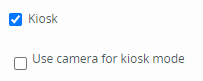 |
If no Employee Profile (Active or Inactive) exists in the portal with the Card Number entered, the message "Employee [number entered in app] not found" displays.
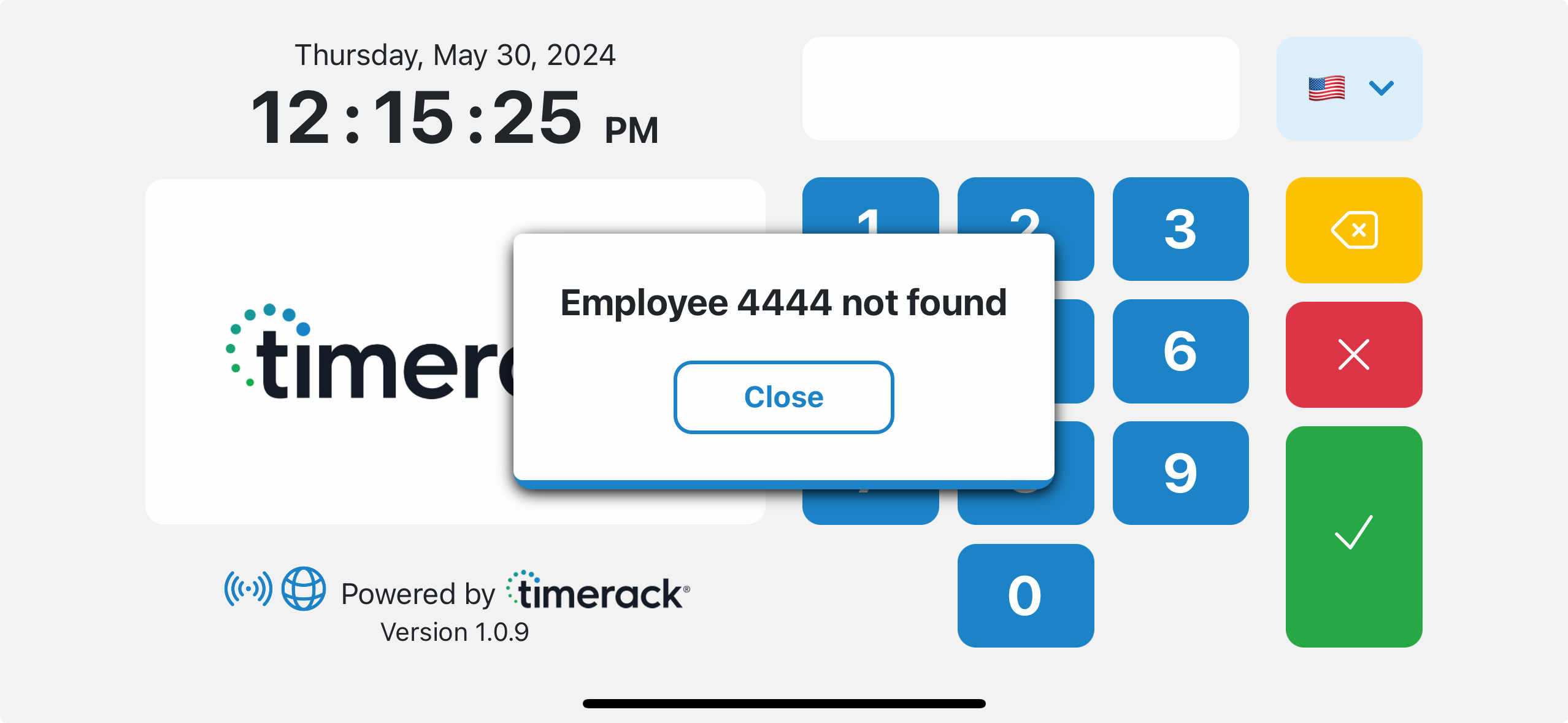
If the Employee Profile associated with the Card Number entered is Inactive in the portal, or it is Active and Kiosk is not enabled, the message "You are not authorized to use this device" displays.
Delete employee authentication data
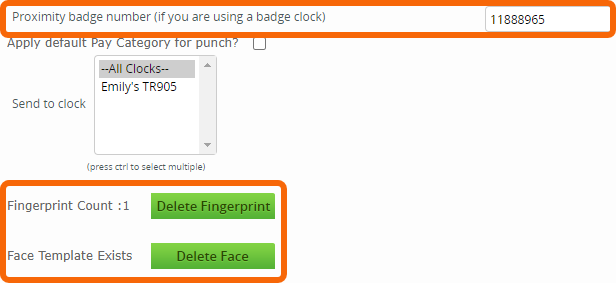
Fingerprint template(s), face template, and proximity badge number are stored in the sensors on the device. Delete functionality for bio-metric data and proxy card number is located on the Employee Profile. Currently there is no capability for employees to delete their own data.
Branding
| The image that appears on the home screen is determined by the client (Settings>General>Company) or Partner logo uploaded (Timerack logo by default). |  |
Connectivity Indicators and Offline functionality
Employee Data and app configuration uses the broker/MQTT. Punching and Last Punch Information uses the API. Punch data is temporarily stored in a database on the device and then transmitted to Timerack when internet connectivity is restored. If changes are made to Employees, Assignments, or app configuration while the device is offline, the update will reflect in the app once the device is reconnected to the internet and the broker/MQTT.
| Next to the app version on the home screen is the number of punches that are stored on the device and have not yet synced to the portal. | 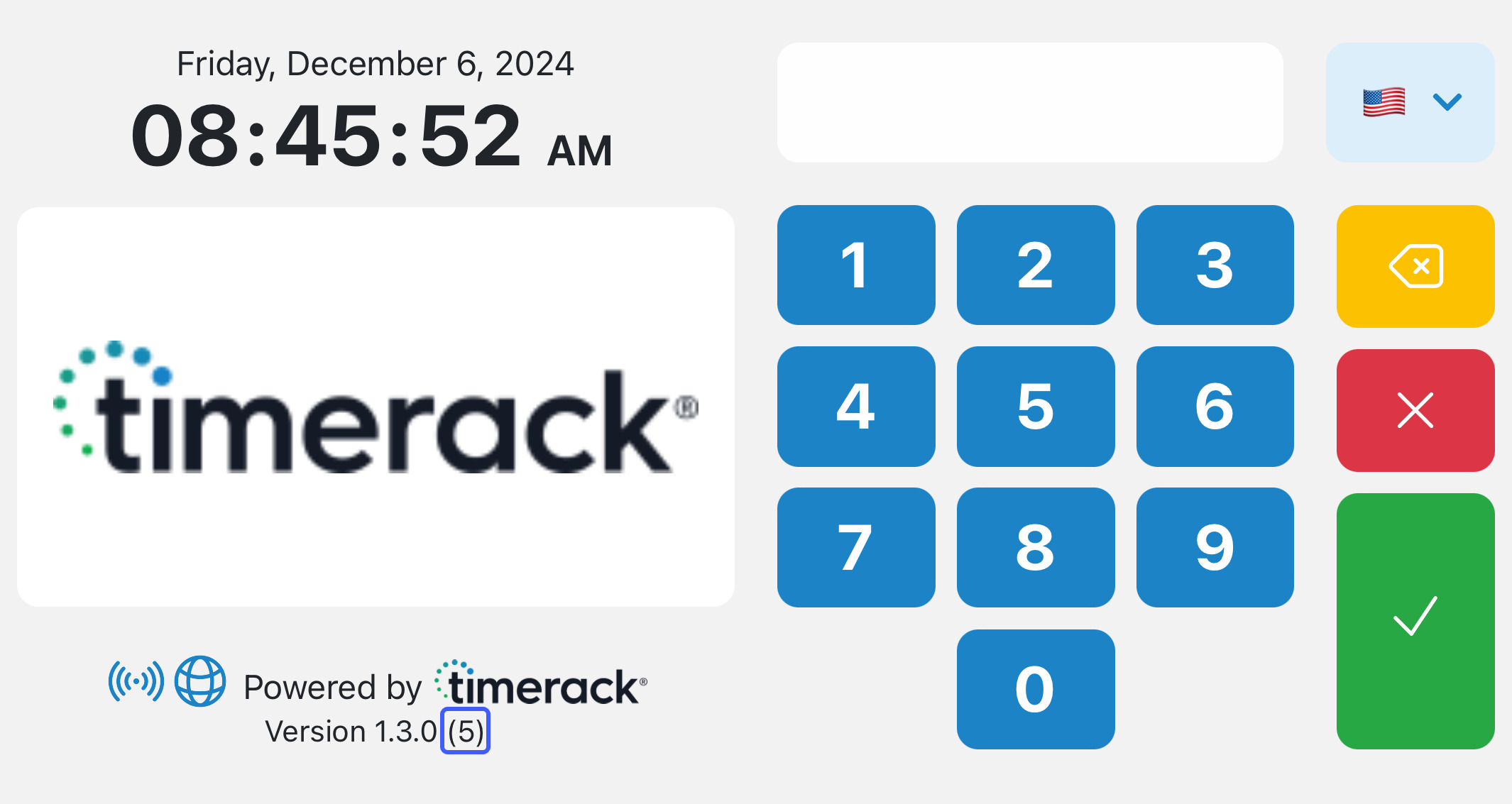 |
| Connectivity indicators are displayed in the lower left of the home screen. These icons will appear blue when connected and gray when disconnected. | 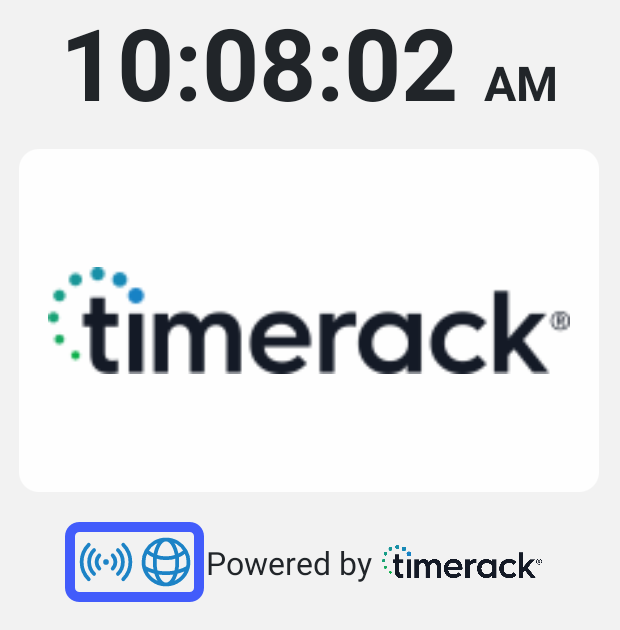 |
| Connected to the internet |  |
| Connected to MQTT/broker |  |
| Connected to the internet but not connected to MQTT/broker |  |
| Disconnected from the internet and MQTT/broker |  |
Cross-device functionality
When Intellipunch clocks are actively connected to Timerack, bio-metric templates and proximity badge numbers sync across clocks at the time of registration. Once enrolled, employees can access all Intellipunch clocks connected to that client portal. There is currently no mechanism to send an employee only to a specified Intellipunch clock.
Last punch information, Intelligent punch buttons, and Lunch Lockout are all functional across devices, provided that each device is actively connected to Timerack.
The Is MultiClock setting in Kiosk Config indicates whether employees will punch on multiple clocks. The MultiClock setting helps to speed up the punch process by optimizing how the employees' Last Punch information is retrieved. Is MultiClock should be activated for all clients, except in cases where the site has poor connectivity to the internet. | 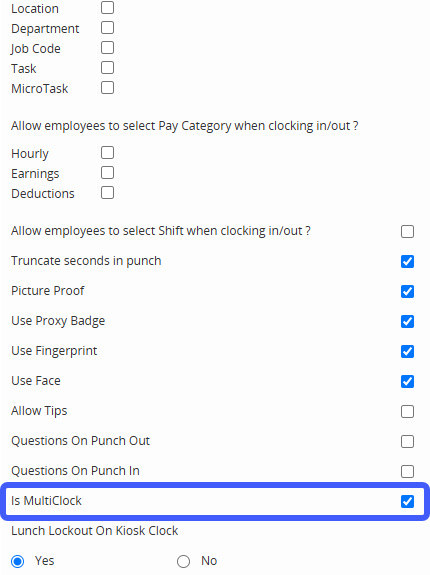 |
Power over Ethernet
Intellipunch has built-in Power over Ethernet (PoE), however, the connected router must be also be PoE-capable to use this feature.
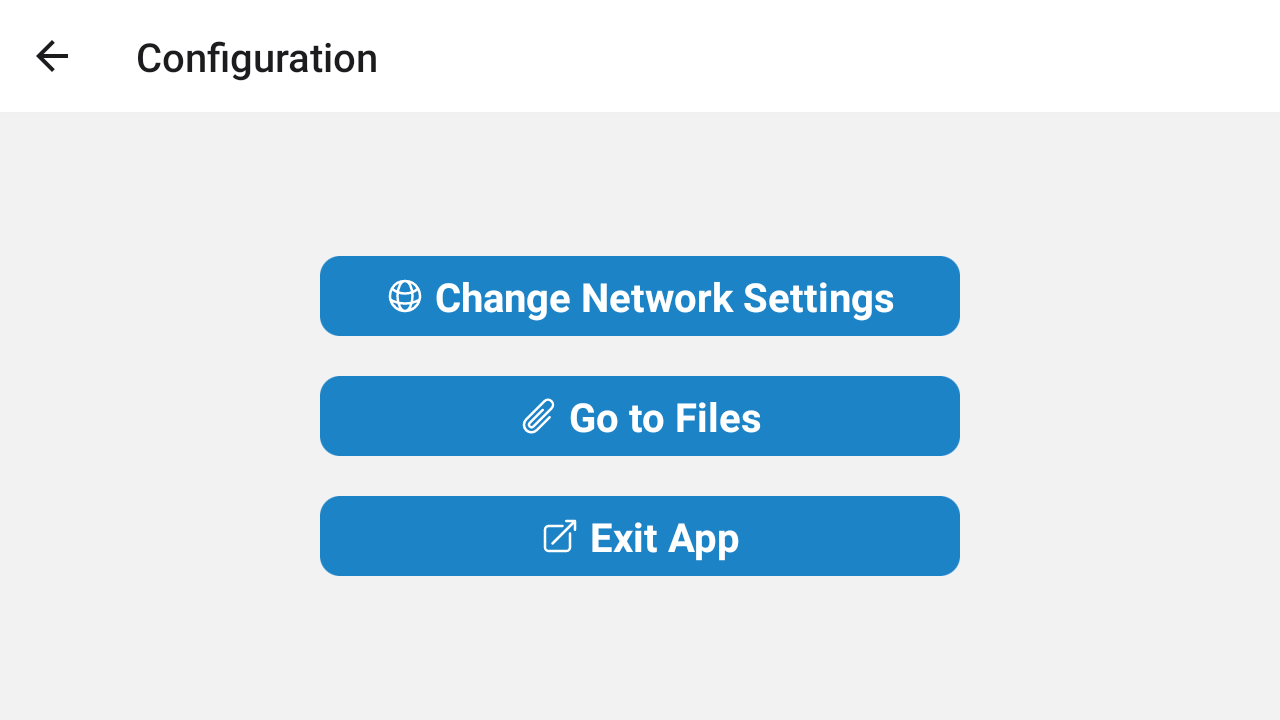
Admin Menu
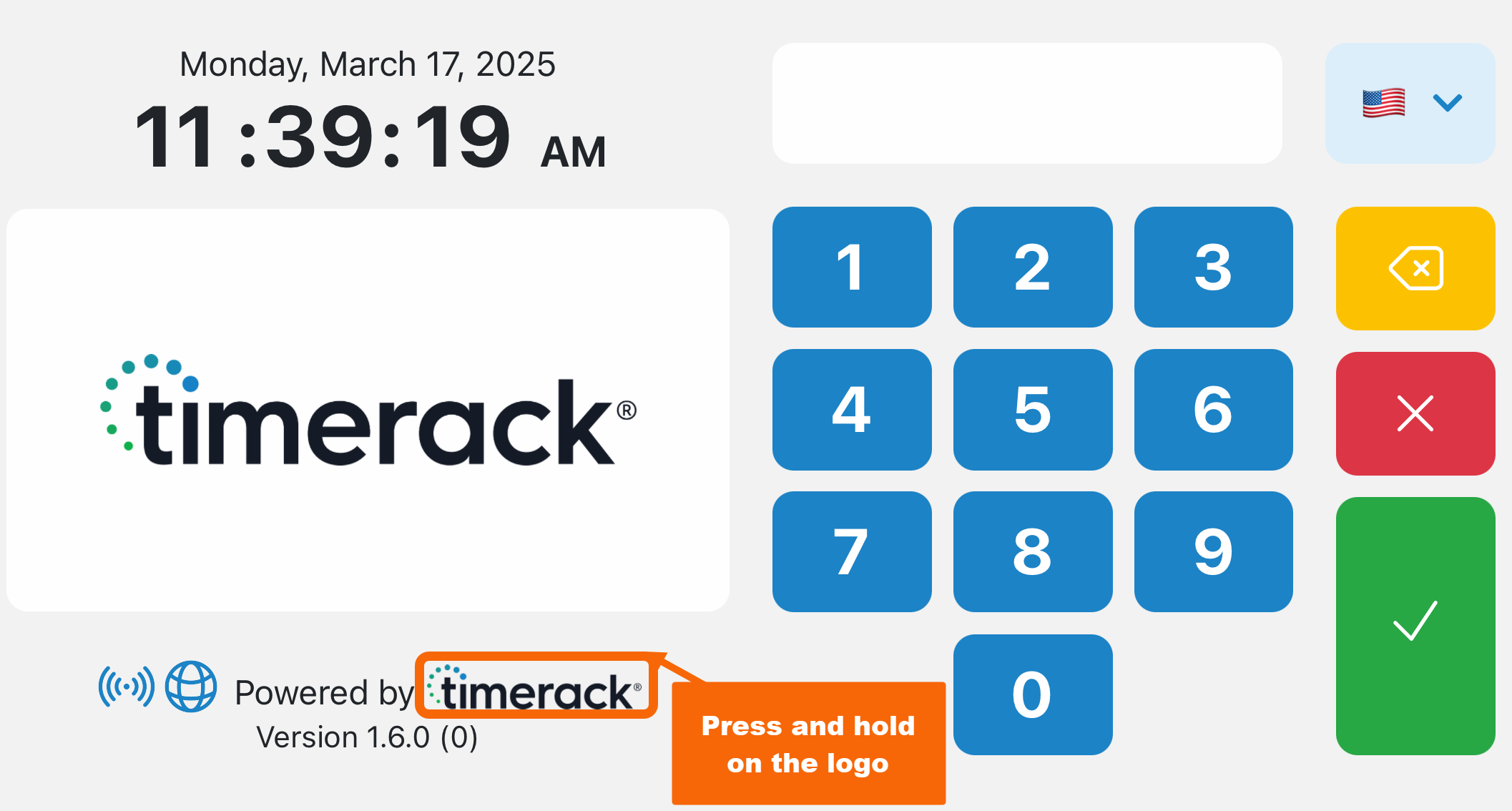
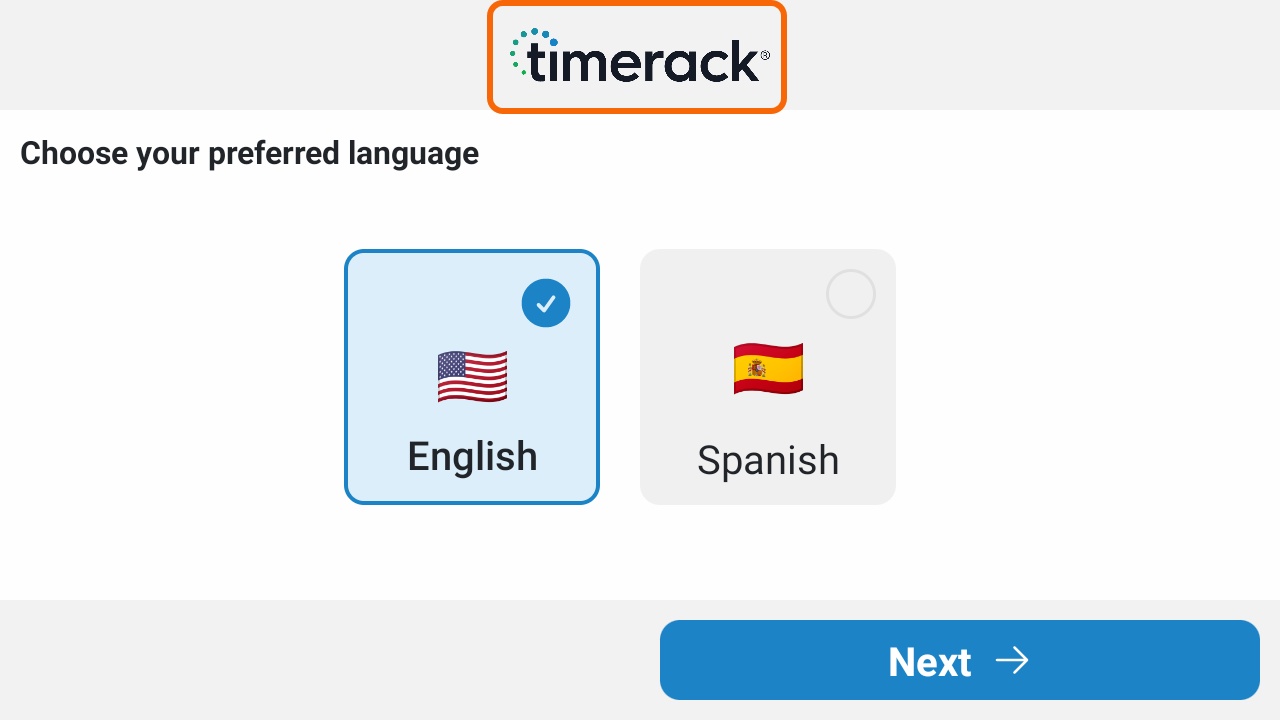
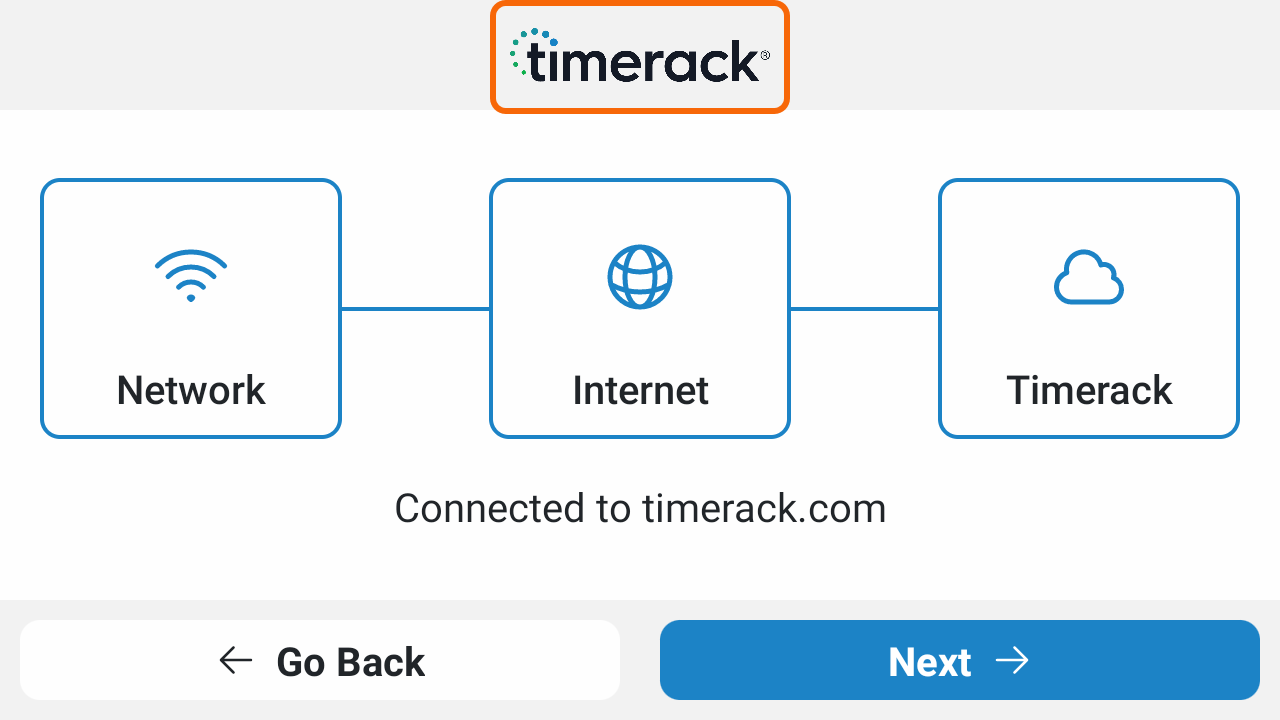
The app is equipped with an Admin Menu feature which provides access to the native functionality of the device. Access the Admin Menu by triple-tapping or long-pressing on the Timerack logo in the following locations:
- Setup screen: Language selection
- Setup screen: network connection
- Data sync screen
- Home screen: next to the connectivity icons
 |  |
Mobile Device Management (Airdroid)
The mobile device management (MDM) platform Airdroid is used to support Intellipunch clocks. Timerack Support utilizes Airdroid's remote control and remote viewing capabilities to assist with troubleshooting and setup by seeing what the user at the clock sees. Airdroid is also used to remotely update the Intellipunch app to new versions.
Clocks are shipped to Timerack with the Airdroid app pre-installed. When each clock is set up, the shipping team opens the Airdroid app and allows the device information to transmit to Airdroid, whereby the device is added to Timerack's Airdroid profile.
The presence of Airdroid on a device can impact its ability to communicate over some networks in the field. See the article Clock Whitelisting: Airdroid for information provided by Airdroid about the Ports and Domains used by the application for the purpose of whitelisting the device(s).