
The Swipe and Go feature enables employees to punch without selecting a punch type.
Swipe and Go is configured from the client portal and no settings changes are required in the clock hardware, however the clock must be rebooted and reset so that settings configured in the portal take effect.
This article explains the Swipe and Go feature.
Configure Settings in the Client Portal
Configure Settings in the Client Portal
1) In the client portal, navigate to Settings>General>Preferences.
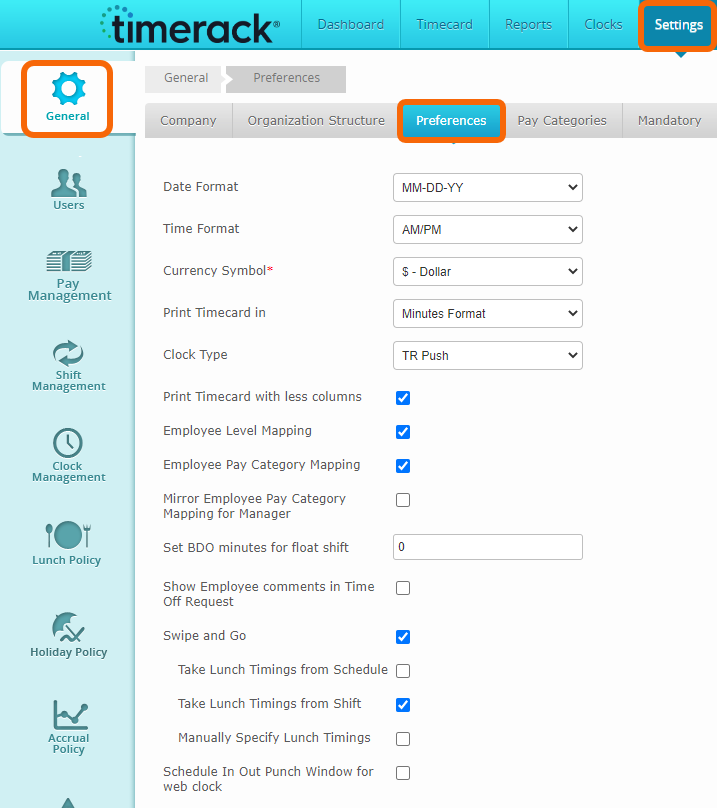
2) Mark the checkbox for Swipe and Go to activate the feature.
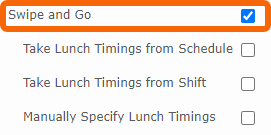
3) Swipe and Go operates by looking at windows of time during which employees are expected to work or go to Lunch. If punches occur within the specified Lunch window, the system designates the punches as Lunch. Lunch Timings determine the span of time during which the employee's punches will be interpreted by the system as Lunch (L) rather than an In (I) or Out (O).
When the Swipe and Go checkbox is selected, three additional checkboxes will appear. | 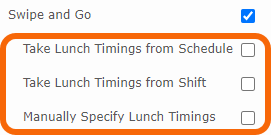 |
Take Lunch Timings from Schedule | Window is based on Lunch Out and Lunch In times shown on the Schedule (Timecard>Schedule), which is populated from the employee's assigned Shift but can be customized. |
Take Lunch Timings from Shift | Window is based on Lunch Out and Lunch In times shown on employee's assigned Shift (Timecard>Employee Data>Shift). |
Manually Specify Lunch Timings | Configure manual timing to ensure that Lunch is captured for Float employees (employees not assigned to a Shift). Manual timing works effectively when Float employees all take Lunch within the same window of time. Manual timing can be enabled in addition to Shift/Schedule timing, as the system will apply the manual timing to employees that Float and will apply the Shift or Schedule timing when assigned.  |
| *Schedule and Shift options should not be enabled simultaneously. If both are enabled, the system will ignore the Schedule and use the Shift. | |
When setting Lunch Timings, allow for flexibility. Leave buffer time to allow for variations in when employees go to lunch. For example, if a shift is from 7:00AM-3:00PM, assign Lunch from 10:00AM-12:00PM. This will allow the employee to start their lunch from three hours after the beginning of their shift to three hours before the end of their shift.
Reboot and Reset the TR905
Once Preferences have been set, TR905 must be rebooted and reset so that the changes take effect. Perform the steps below to reboot and reset the clock.
Note: Reboot only (report 834) is not sufficient to implement the new configuration. |
1) From the Admin Dashboard, navigate to Reports.
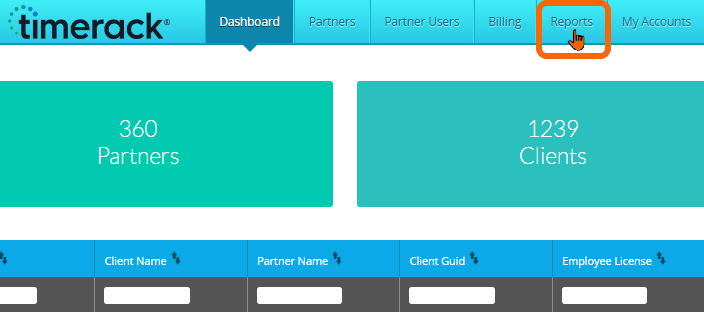
2) Choose the Data Export Manager option on the left.
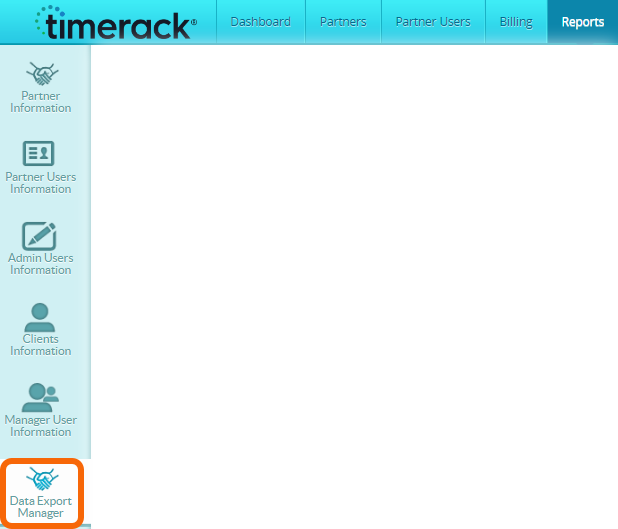
3) Retrieve report with ID 835 (Reboot and Reset Runstate to 0 for TR905) from the Report List in the lower portion of the page.
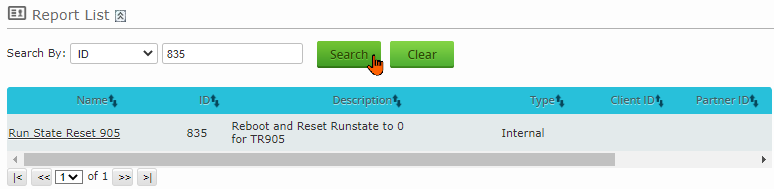
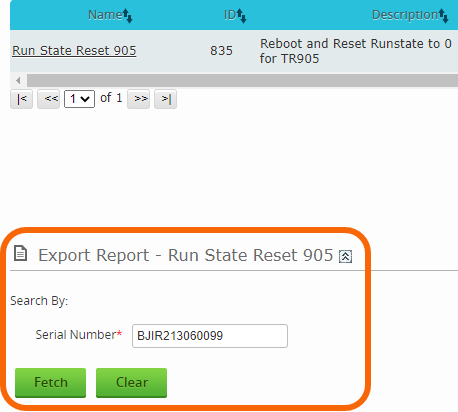
4) Click on the report Name to open the report.

5) Enter the Serial Number for the applicable TR905 and then click the Fetch button to execute.
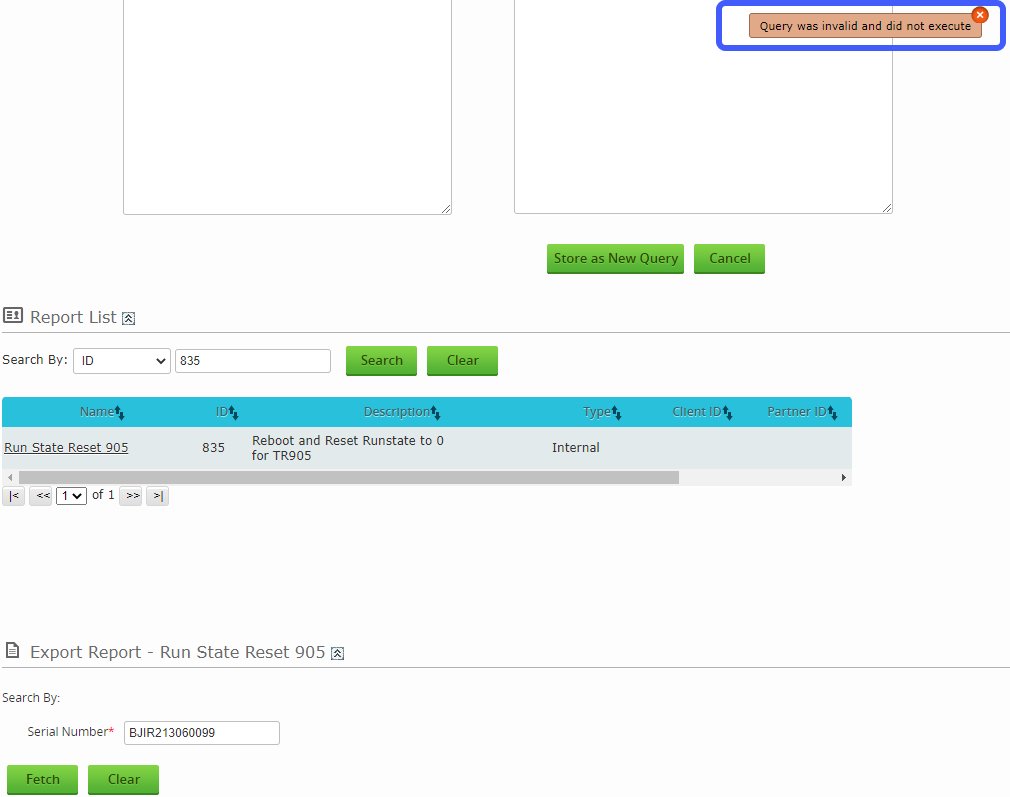
A message may display that the Query did not execute. This message is normal and does not indicate an actual error.
The clock will reboot twice. After the second reboot, the clock display may take a few minutes to update to Swipe and Go format.
There are two variations of home screen display for a TR905 configured for Swipe and Go:
| If Lunch Lockout is enabled, "Punch" will display. | 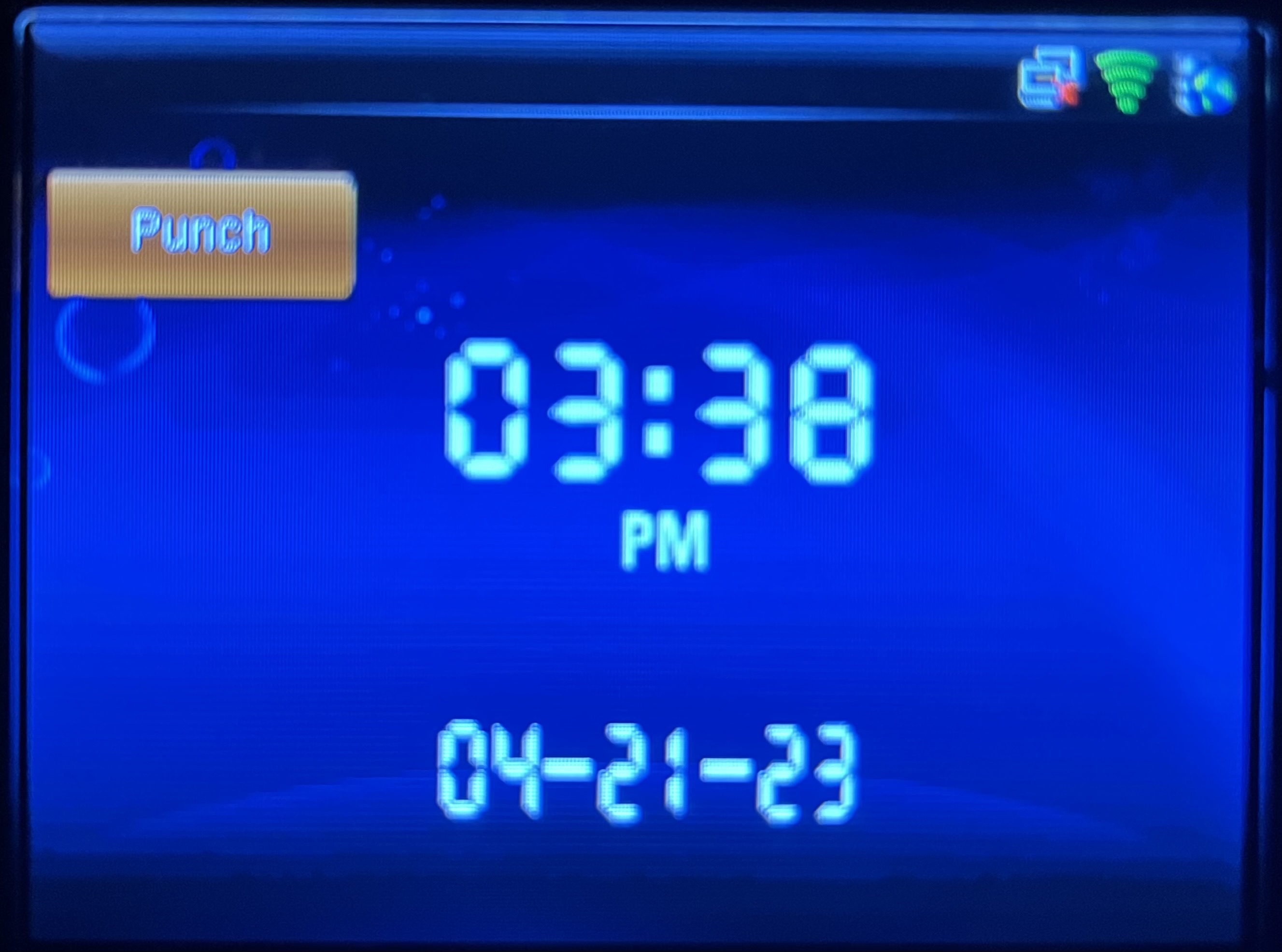 |
| If Lunch Lockout is not enabled, no punch options will display. | 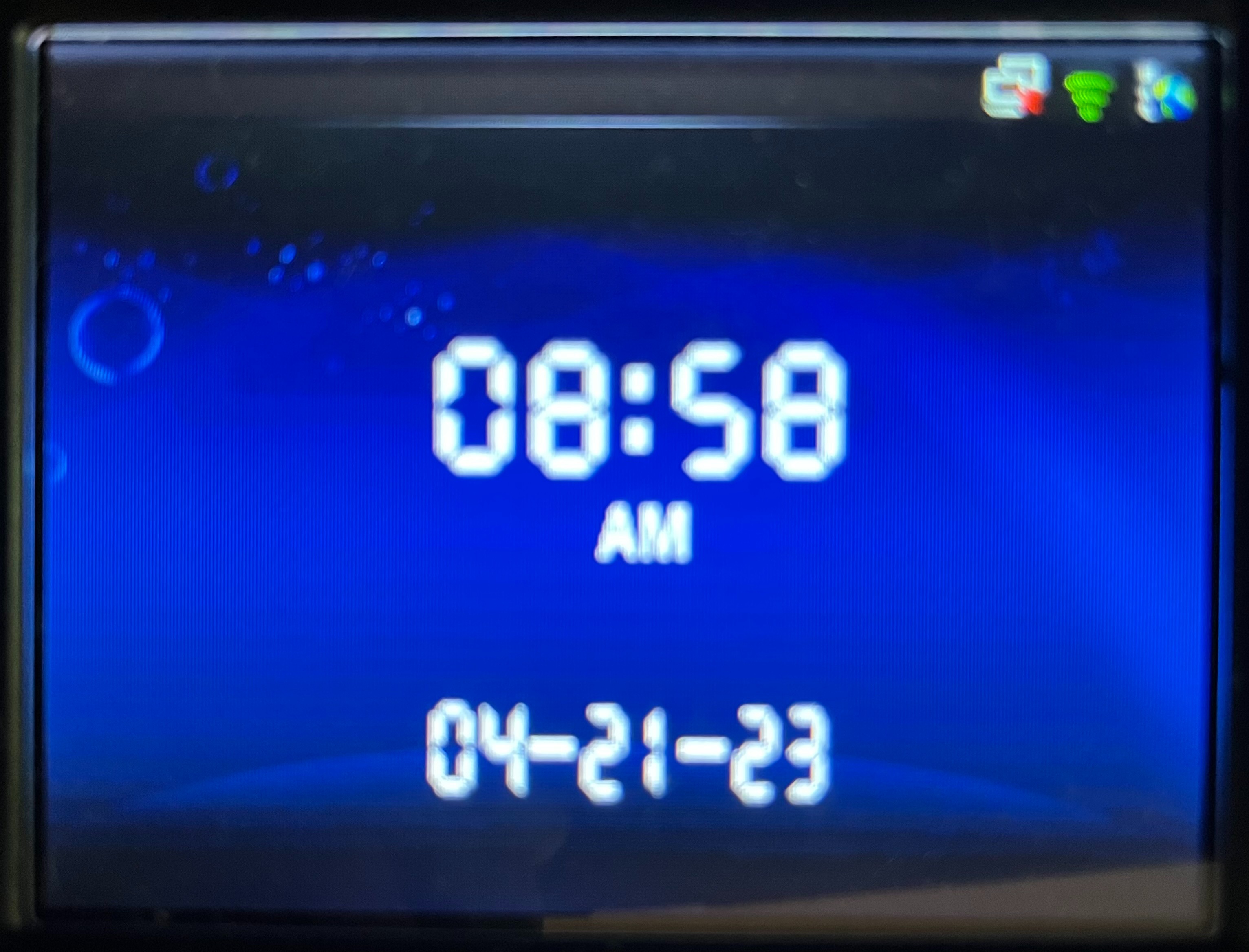 |
Limitations
If Automatic Lunch Deduction is enabled and the system does not recognize any punches as Lunch (usually due to Schedule/Shift/Lunch Timing), the system will assume that lunch has not been taken and will deduct time based on the Lunch Policy.
When the employee is assigned to a Shift, the punch type for punches during the lunch window does not display as Lunch Start and Lunch End until the punch pair is closed. Therefore, if Automatic Lunch Deduction is enabled, the deduction displays on the timecard until a Lunch is populated.
The Transfer (Levels or Assignments) function is not available on TR905s when Swipe and Go is enabled.