
Kiosk and Intellipunch have a feature which enables Assignments to be applied to time pairs based on which device the employee used to punch in. When the "Default Clock Level" feature is active, users can designate a default Organization Level to each Kiosk and Intellipunch device associated with a client. When an employee punches in, the app will search the employee's active Assignments for any with the Default Clock Level of the device that they used to punch and apply the matching Assignment to the time pair. Activating the Default Clock Level feature eliminates the requirement for employees with multiple active Assignments to select one on the clock when they punch.
This article explains how to set up a Default Clock Level for Kiosk and Intellipunch and what to expect when this feature is enabled.
Configuration
All setup steps below must be completed for Default Clock Level to operate correctly. The feature must first be activated in Kiosk Config, and then the Default Levels must be assigned to the devices on the Kiosk page. If the feature is enabled in Kiosk Config, but a default level has not been selected for the device on the Kiosk page, the app will not attempt to find a matching Assignment, and employees who have multiple active Assignments will be presented with the Assignment selection screen when they punch.
Enable the feature
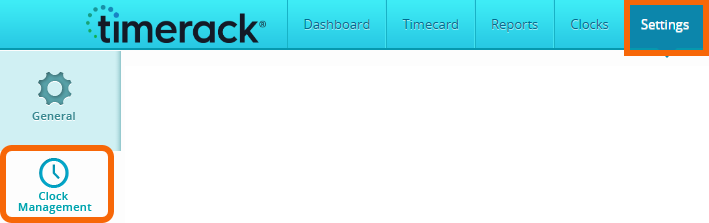
1) In the client portal, click Settings in the top navigation menu and then select Clock Management on the left navigation menu.
2) Select Kiosk Config.

3) Scroll down to Apply clock default level to timecard and then select Yes. | 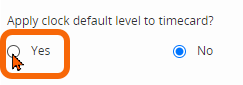 |
When Apply clock default level to timecard is selected, a Select Level dropdown will display. | 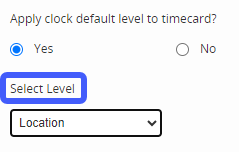 |
| 4) Use the Select Level dropdown to choose the Organization Level you want to use. | 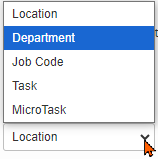 |
5) Click Save. | 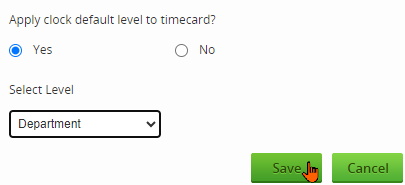 |
Device Setting
1) Select Kiosk.

2) Locate the device you want to configure in the list.

| 3) In the Action column, click the pencil icon to edit the device. | 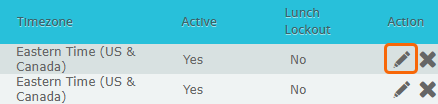 |
| 4) Use the applicable dropdown to select a level. | 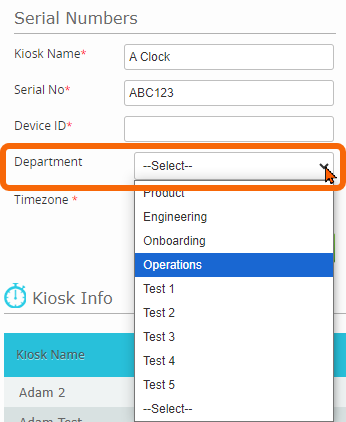 |
| 5) Click Save. | 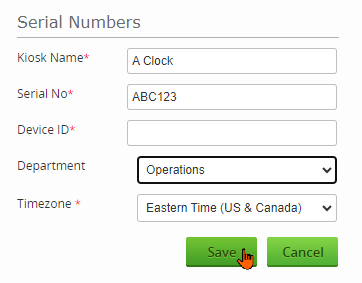 |
How it works
Found zero matching Assignments:
If the Employee does not have an Assignment that matches the Default Clock Level, no Assignment is applied to the punch. The punch is sent with the employee's default levels and the default value for each level is inserted on the Timecard.
Found one matching Assignment:
Assignment with the matching level is inserted on the Timecard.
Found multiple matching Assignments:
If one of the Assignments with the matching level is the employee's Default Assignment, the Default Assignment is used for the punch.
If none of the Assignments with the matching level are the employee's Default Assignment, no Assignment is applied to the punch. The punch is sent with the employee's default levels and the default value for each level is inserted on the Timecard.
Other Active Organization Levels
If additional (non-Assignment) Organization Levels are enabled for selection in Kiosk Config, the level selected on the clock by the employee is inserted on the Timecard. The Assignment matching logic still applies for the Assignment Levels.