This article contains information about the TempWorks integration with Timerack.
About the integration
Activation
To enable clients to activate Customers in TempWorks, the Timerack Client Key for the portal must match the TempWorks Customer Id. 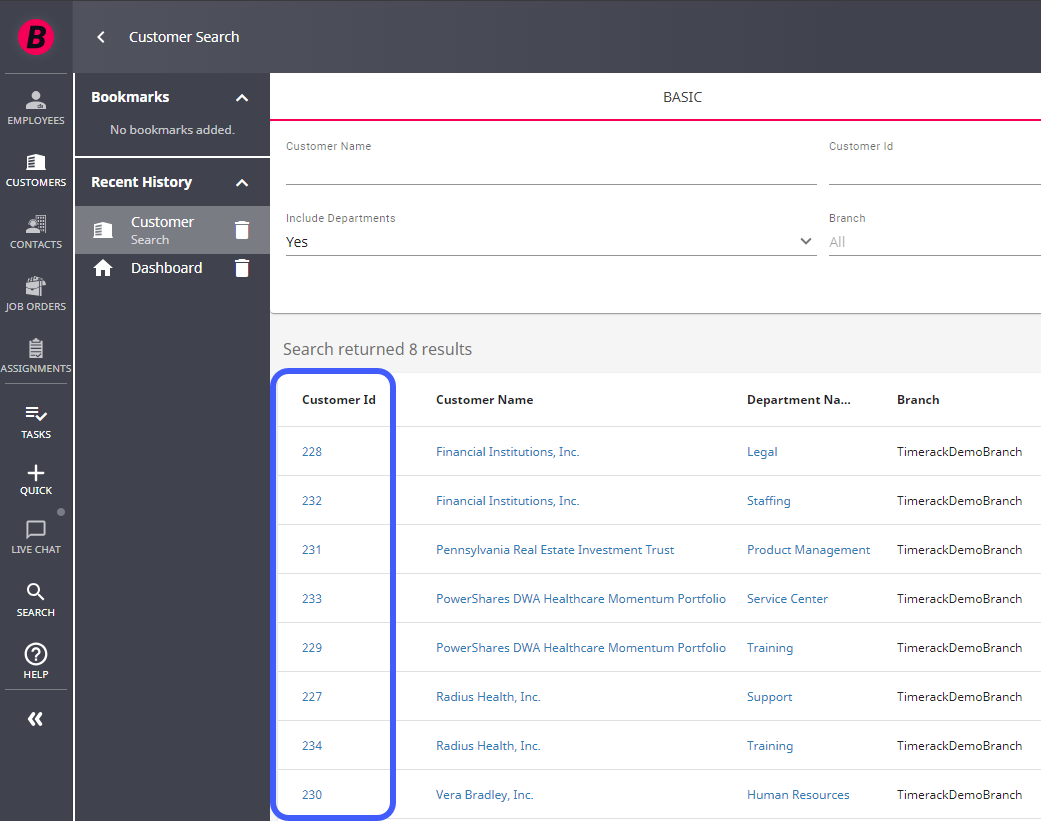
Assignments
Employee and Assignment data are automatically updated on an hourly basis. To retrieve new data on demand, users can Manually Initiate Import of Assignments from TempWorks.
Payroll
Payroll data are generated on the Payroll Report page (PayrollReport.aspx) and populated into TempWorks Timecards by integration using the Send to TempWorks button.
The Pay Period for which you are pulling data must match the current open Billing Period in the TempWorks account, denoted by the Weekend Bill date in TempWorks’ “Timecards” section. The Weekend Bill date must correlate to the End Date of the Pay Period for which you are sending data. Only one Billing Period is open at a time in TempWorks, so data for other Pay Periods cannot be sent. The ‘Date Range' and ‘Generate Summarized Report’ options are not currently usable with the integration.
In TempWorks, a separate "Timecard" is created for each Pay Code per Assignment per Employee. When a batch of timecards is sent from Timerack to TempWorks, Timerack checks if it has sent over a set of timecards for the exact same combination of Levels and Pay Period. If so, TempWorks deletes all existing timecards that were created from that initial bulk import before creating timecards with the data from the current batch. If the Levels for the timecards in the new batch overlap with but are not identical to the Levels for the timecards in the previous batch, overlapping timecards may appear in TempWorks.
Example: A batch of timecards is imported for Locations (Location1, Location2, Location3) and then a second batch of timecards is imported for the same Locations (Location1, Location2, Location3), the original batch of timecards will be wiped out and recreated by the data from the new batch. However, if a batch comes in with a different set of Locations (Location3, Location4), then the previous batch of timecards won’t be deleted, and there will be duplicates in TempWorks for Location3's Timecards.
The payroll file can also be downloaded and imported into TempWorks manually-see Import Timecard Data into TempWorks.
Portal Configuration
Payroll Bridge
TempWorks
Organization Structure Levels
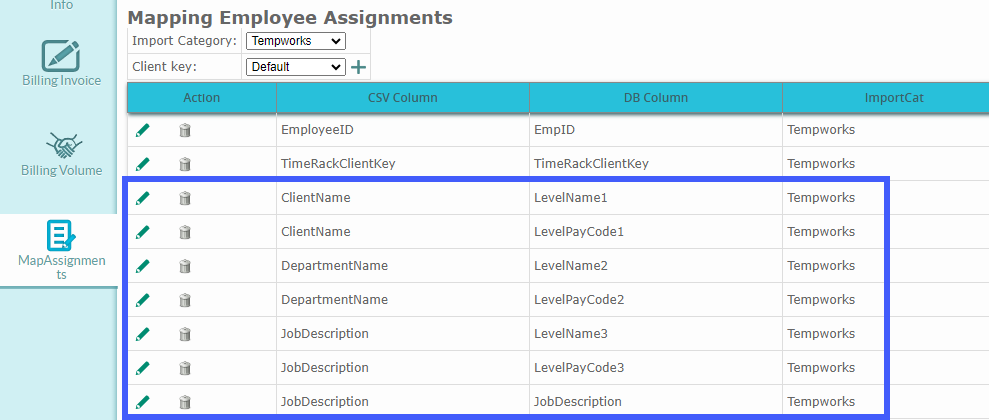
Levels one, two, and three are integrated. Default mapping for levels one, two, and three corresponds to Client Name, Department Name, and Job Description in TempWorks, respectively.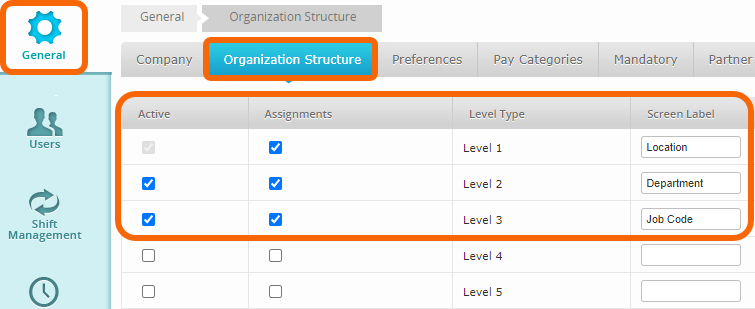
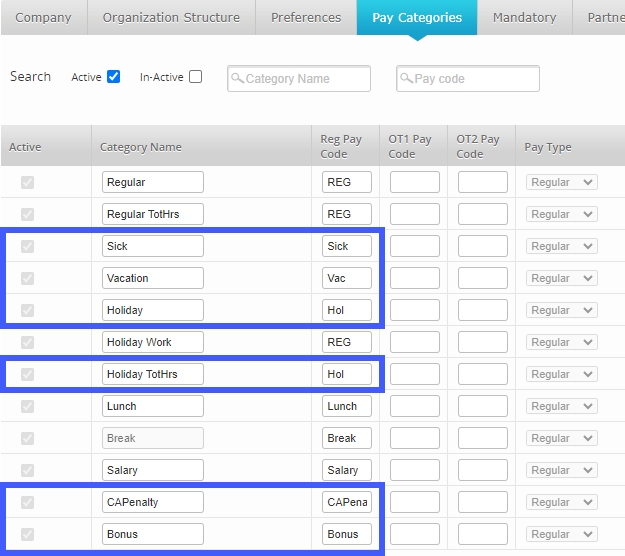
Default Pay Categories and Pay Codes
All work hours are exported as REG Pay Code and are separated into RegHrs, OTHrs, and DTHrs. OT1 and OT2 Pay Code fields on the Pay Categories page do not need to be mapped.
| Pay Type | Pay Code |
|---|---|
| Regular | REG |
| Holiday | Hol |
| Sick | Sick |
| Vacation | Vac |
| Meal Premium/Penalty | CAPenalty |
| Bonus | Bonus |
Card Number
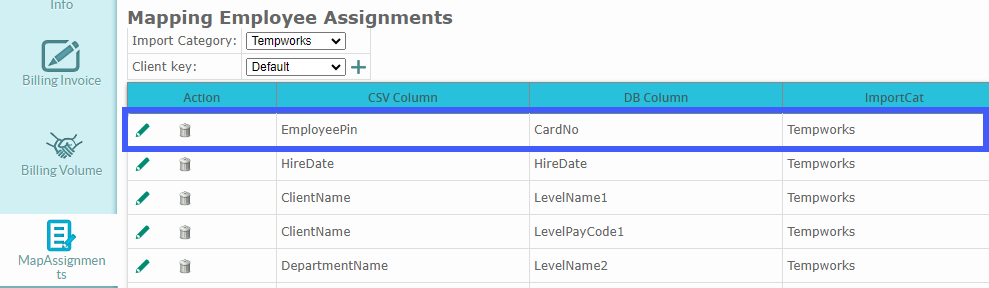
Card Number is mapped to the TempWorks Employee Pin