
Lunch Lockout prevents an employee from ending their meal period before a specified amount of time has elapsed. Lunch Lockout is based on the Lunch Start and Lunch End punch types; if the punches are not entered as Lunch Start and Lunch End, Lunch Lockout will not apply. If the Swipe and Go feature is enabled, punch type is determined automatically and does not have to be selected by the employee.
If a clock is not communicating with the Timerack server when lunch is started, Lunch Lockout will not take effect.
This article explains how to configure Lunch Lockout.
Lunch Lockout is enabled in Settings>Clock Management for all methods of time capture.
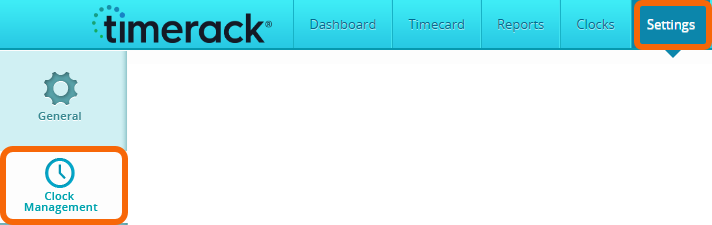
If Lunch Lockout is being set up for a clock(s) that is already active for the client, remember to reboot and reset the clock(s) after making the configuration changes.
|
Configure Lunch Lockout duration for Web Clock
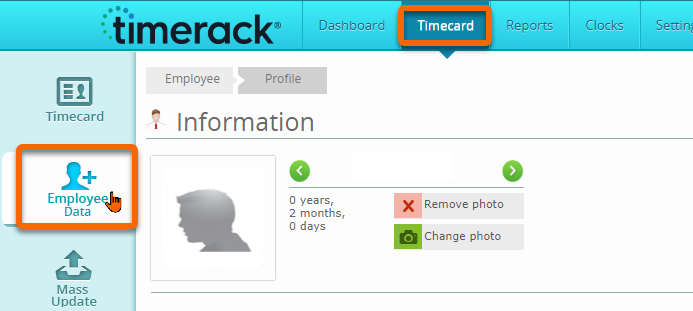
1) Click Timecard in the top navigation menu and then choose the Employee Data option on the left.
2)
3) Navigate to the Clock section and then enter the Lunch Lockout duration in Web Lunch Limit (Min.). | 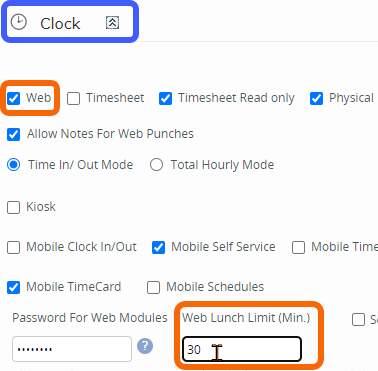 |
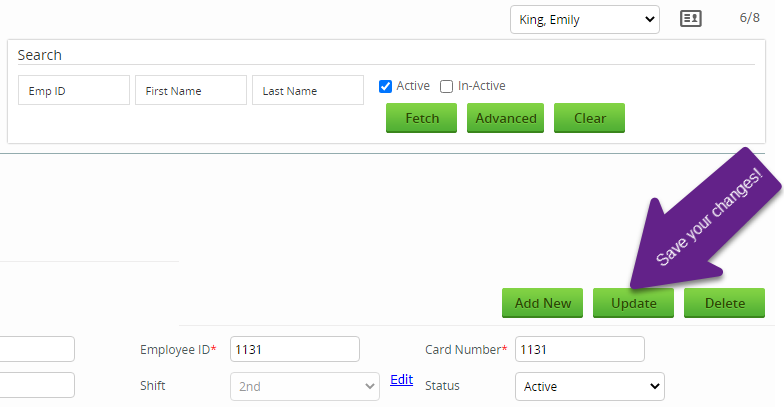
4) Click the Update button in the upper right of the Employee Profile to save your changes.
|