
TR905 has a feature which allows users with the Normal User role to enroll their own fingerprints in the clock. By default, Normal Users (users that are loaded into the clock as employees) cannot enroll fingerprints; Self-Enrollment must be enabled at the clock level if this feature is requested. TR905 must be updated with the most recent firmware in order to access the Self-Enrollment feature.
This article explains how to configure TR905 to make the fingerprint Self-Enrollment feature available to employees. For information on how to self-enroll, see Self-Enroll Fingerprints on TR905.

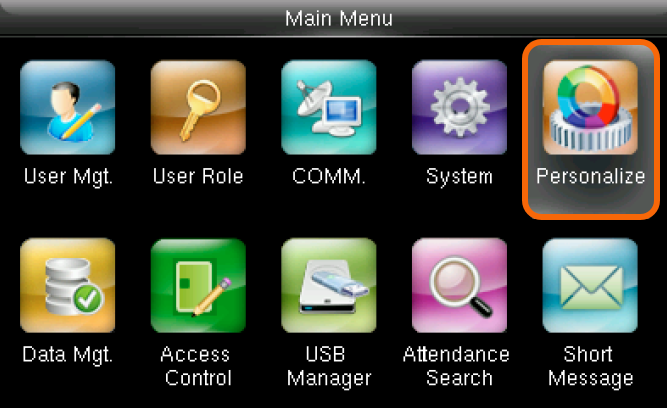
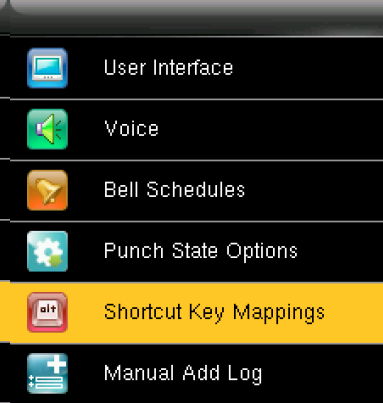
4) Use the arrow buttons to navigate to an Undefined F key to designate as the Self-Enrollment function and then press OK to select it.
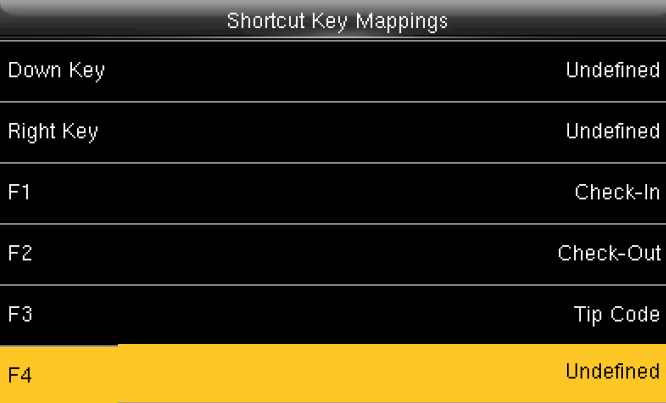
5) Press OK to display a list of functions to assign to the selected key.
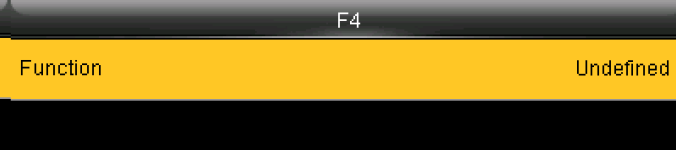
6) Use the arrow buttons to navigate to Self-Enrollment and then press OK to select it.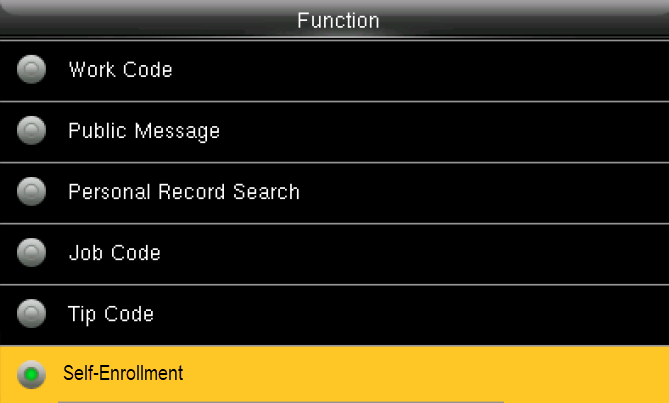
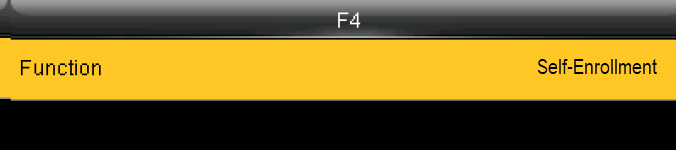
7) Verify that Self-Enrollment is displayed as shown and then p
Self-Enrollment displays as an option on the home screen. | 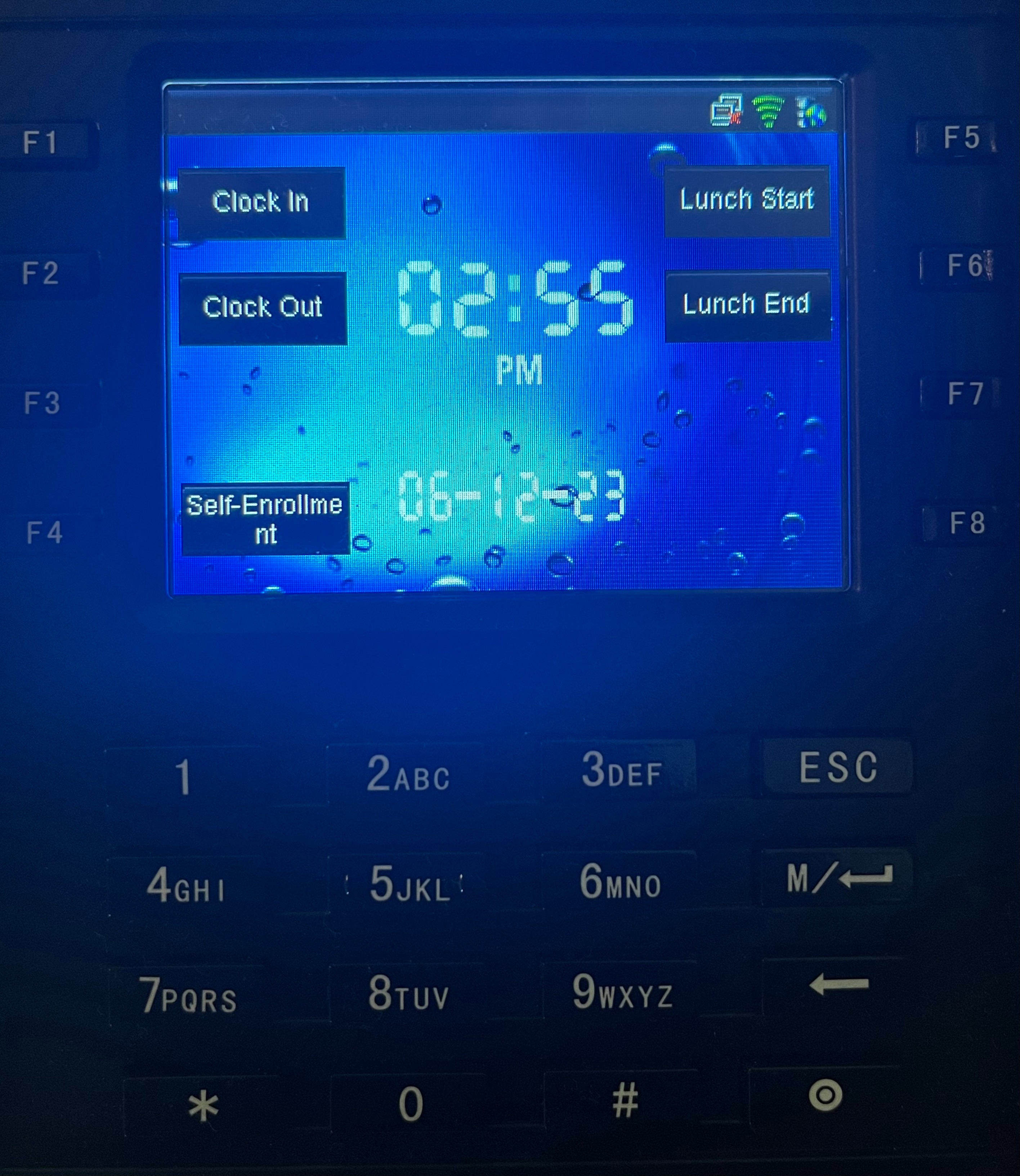 |