This article explains how to configure a portal integrated with AccountingCS (ACS).
In this article:
Activate Timerack Integration in ACS
Client SetupFind and Enter the Client GUID
About the integration
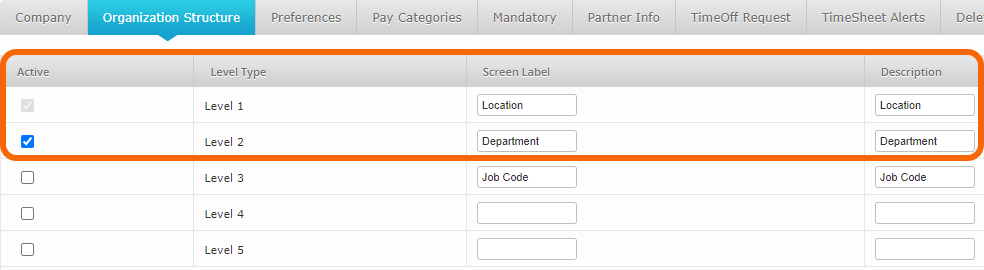
See Information shared between Accounting CS and Time Rack Employee Data Changes to employee data should originate in ACS. If a change, such as attaching an employee to a new Level (Location or Department), is made in Timerack and a user does not make the same change in ACS, the employee may not be paid correctly. If the payroll file is sent to ACS with hours attached to a Level to which the employee is not assigned in ACS, ACS will not recognize the hours. |  |
Payroll
Accruable Benefit Balance Calculation
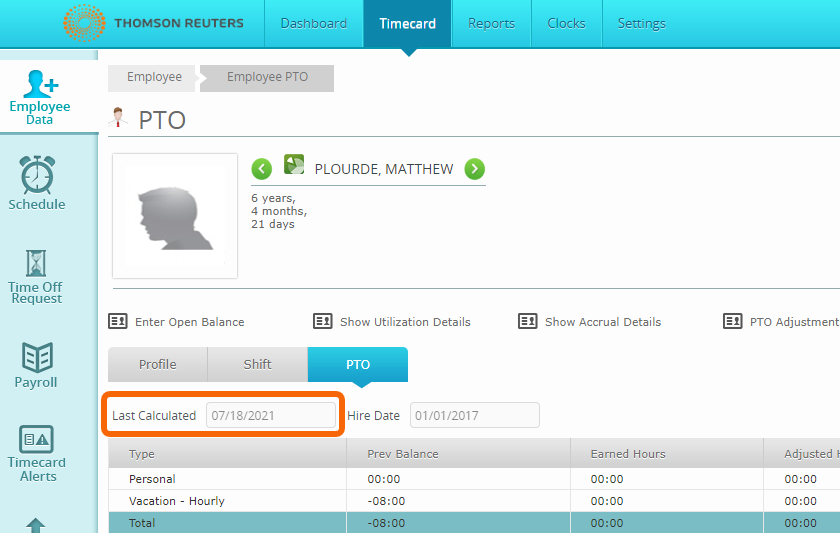
Last Calculated Date on the PTO tab of an Employee Profile displays the Pay Period ending date of the last Pay Period in which an Accruable Benefit was used (not the end date of the most recent Pay Period processed and not the most recent Reporting Date on which an Accruable Benefit was used).
Activate Timerack Integration in ACS
The CPA firm must turn on the Timerack integration in ACS so that ACS will begin sending data to Timerack. Send this KB article link to the CPA contact: Activate Timerack Integration in Accounting CS (ACS)
Portal Configuration
Partner Setup
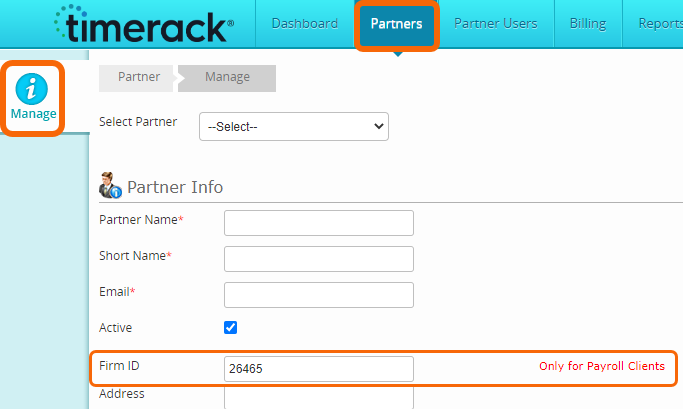
Each partner that uses ACS has a unique Firm ID. If the portal is for a brand-new partner, retrieve their Firm ID from the Partner Gathering Document attached to the Order or Deal in HubSpot. If the Firm ID field is blank in the Partner Gathering Document, ask the partner/CPA firm for this information. Partners who have active Timerack clients already have the Firm ID set up on their partner profile.
Client Setup
Find and Enter the Client GUID
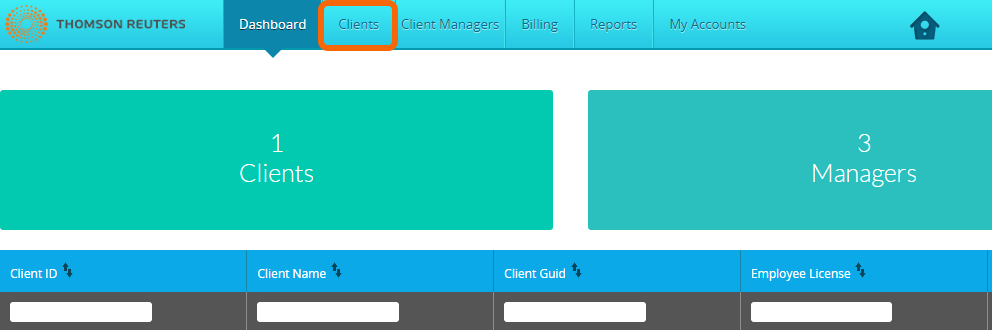
1) Navigate to the applicable Partner Portal and then click Clients on the top navigation menu.
2) Choose the Payroll Client List option on the left.
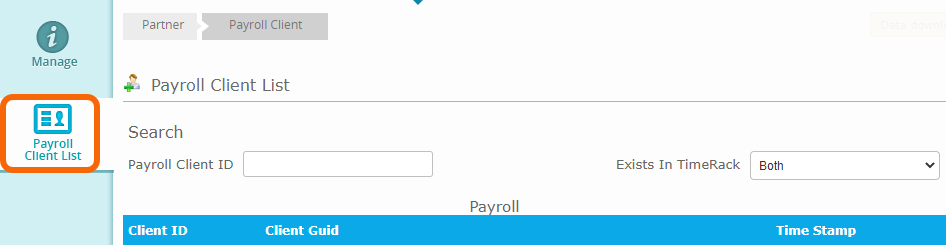
3) Ensure that No is selected on the Exists in Timerack dropdown menu and then click the Download Clients button.

4) A list of clients sending data to Timerack will display. Reference the Client ID field to verify which is the correct client and then copy the Client GUID. If the applicable Client GUID is not showing, contact the CPA and verify they have enabled Timerack correctly in Accounting CS.

5) Go to the Manage option on the left.
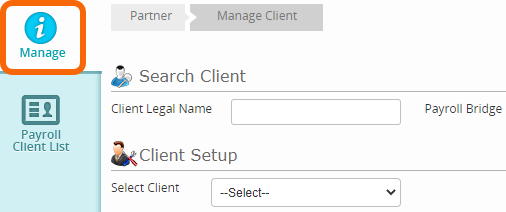
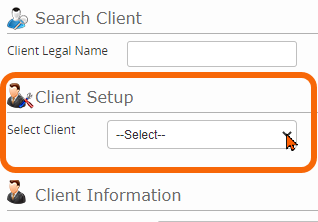
6) Use the Select Client dropdown menu to open the applicable client profile.
7) Paste the copied GUID into the Client GUID field in the Client Information section.
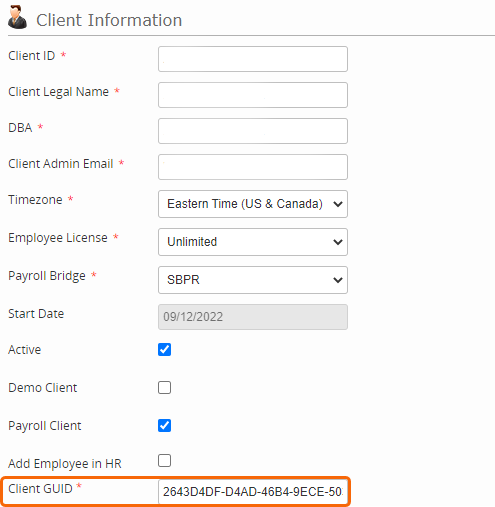
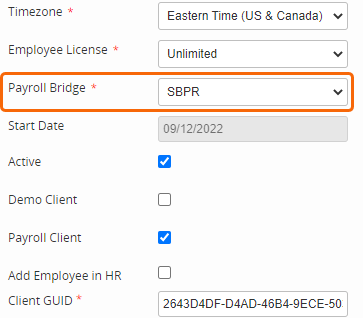
Confirm Client Settings
Mark the Payroll Client checkbox. | 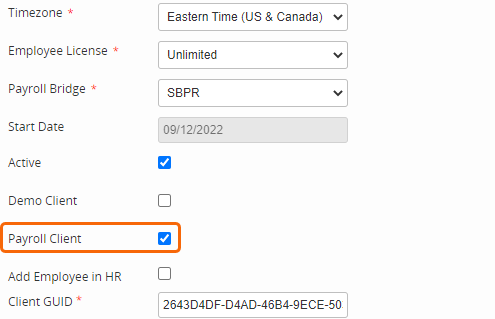 |
 |