
Portal
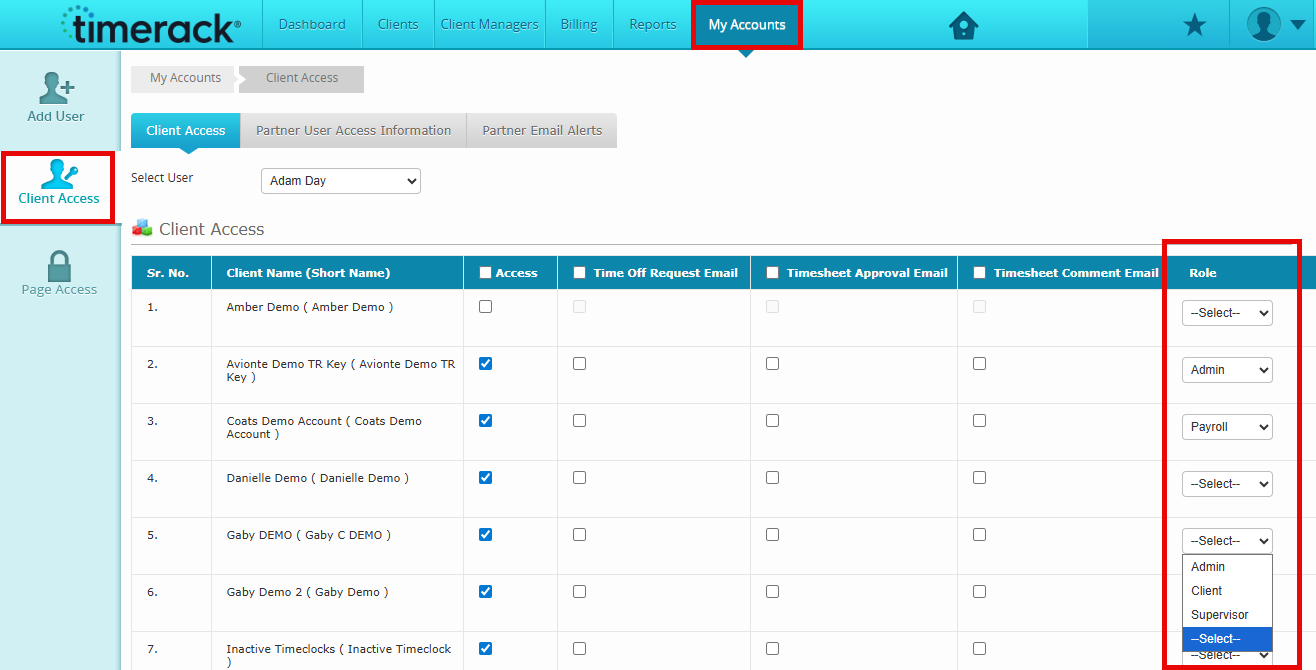
• Added the ability to control full role permissions for Partner users. A full access role is set as default, but you can modify to assign the Partner user any user role that currently exists within the client(s) they have access to.
• You can adjust partner user roles only by a Partner account in My Accounts>Client Access>Selecting a Role from the dropdown under the Role column.
- • Examples
- • Customer services multiple portals but needs local role access such as a Manager or other defined role.
- • A Partner or Customer user needs access to multiple portals but each portal their access could be different
Note: Currently this does not support Employee Assignment on the User tab for limiting user access to sets of employees.
• Added additional information to the timecard audit logs.
• You can now see when a Punch Type is changed on an employee's timecard (from I [In], L [Lunch], B [Break], and O [Out]).
• You can also see when a Meal Premium has been deleted from an employee's timecard.
• To view the Timecard Audit Log, navigate to an employee's timecard, and select the Timecard Log option located above the timecard. 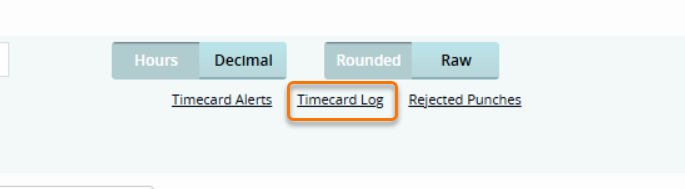
• The Card Number field on the Employee Data Page for clients with Intellipunch clocks [only] in their portal can now hold up to 8 digits.
• User > Employee Assignment now when "ALL" is selected for level access, new levels will be automatically selected. You will no longer have to continue to update when new levels are added.
Reports
• Added functionality to the Absence Summary report to show the Reason Code from the timecard for days that an employee is absent, given that the client is utilizing the Reason Code for absent days.