
The option to select a verification method for the TR905 clock models allows specific employees, clocks, and clients to be assigned various punch Verification Methods.
This article explains how to select the Verification Method for the levels mentioned above.
Client Level
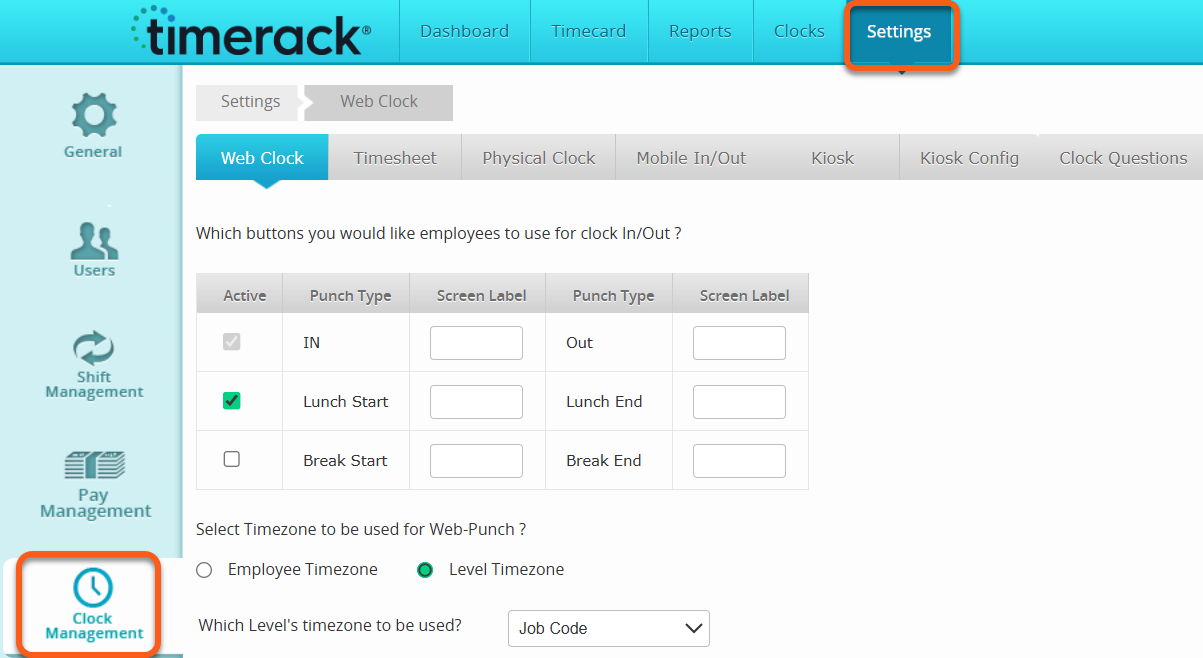
1) Click Settings in the top navigation menu and then choose the Clock Management option on the left.
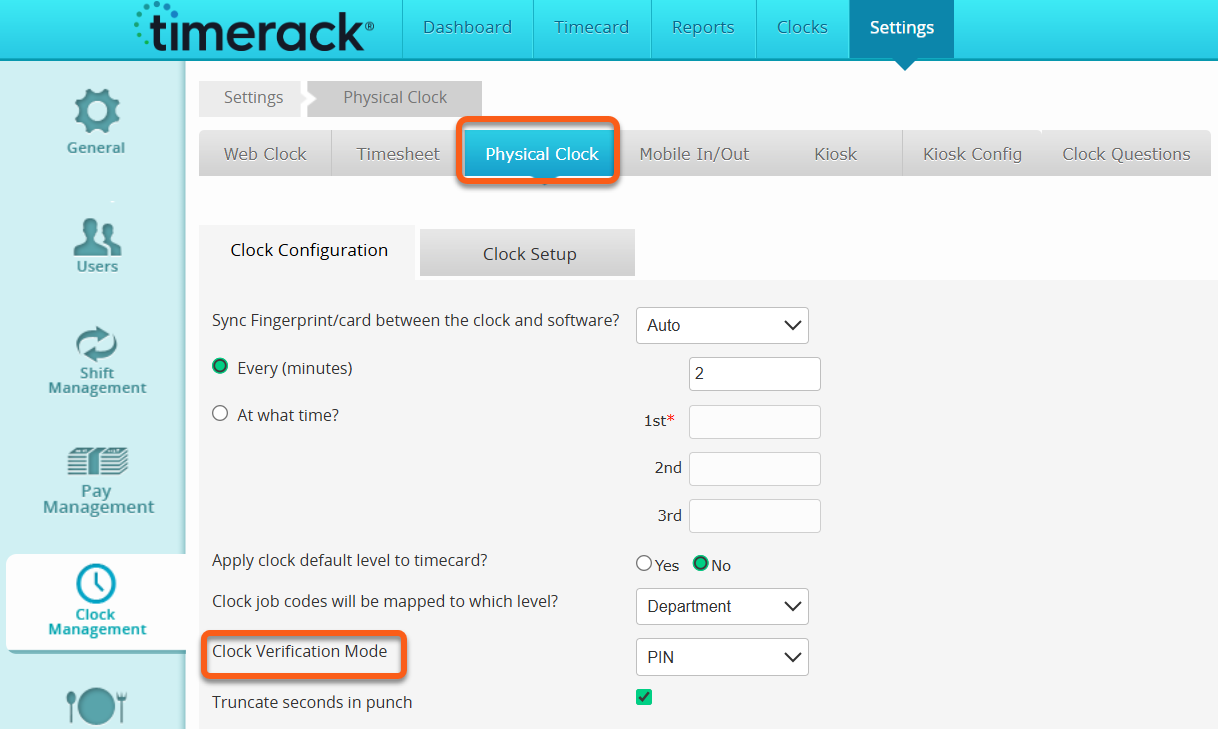
2) Locate the Physical Clock sub-tab on this page and navigate to the Clock Verification Mode selection.
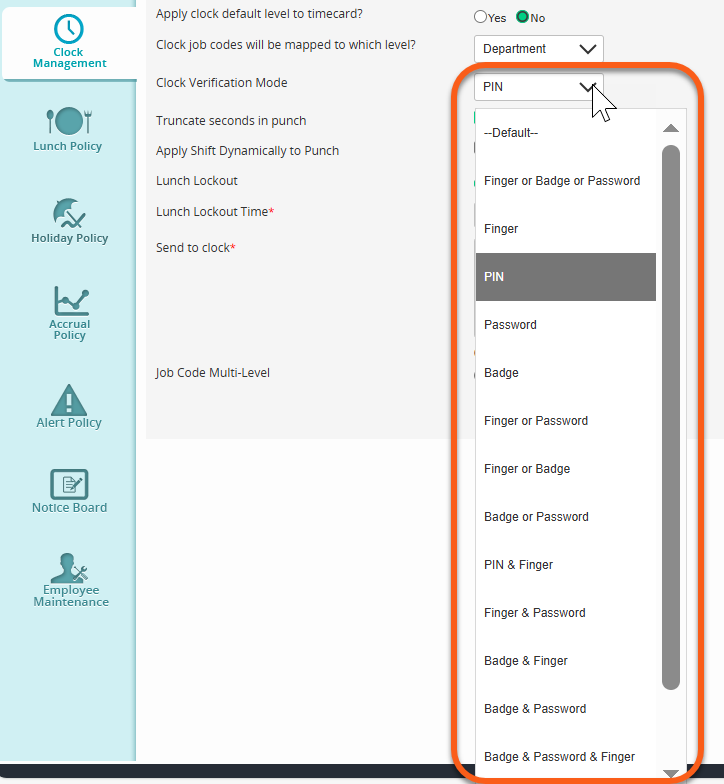
3) Select the drop down next to the Clock Verification Mode selection to choose the method you would like for all TR905 clocks in the client portal.
4) Select Save to save your selected verification method.
Please note it may take several minutes for updates to sync to the TR905 clock(s).
Clock Level
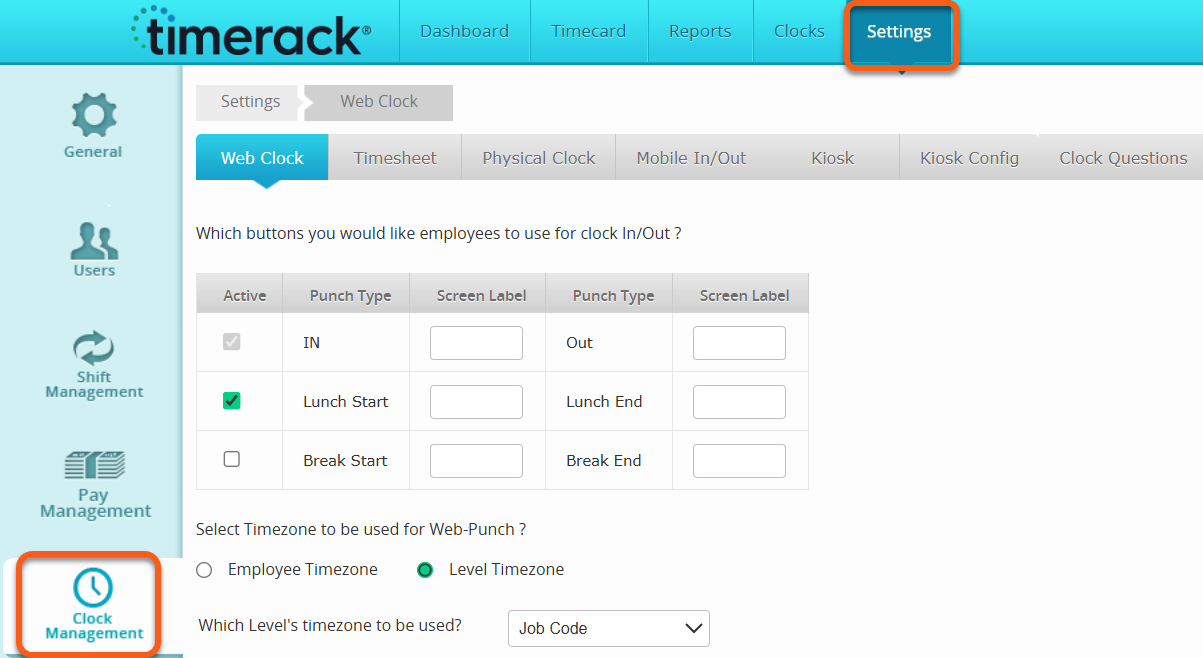
1) Click Settings in the top navigation menu and then choose the Clock Management option on the left.
2) Locate the Physical Clock sub-tab on this page and navigate to the Clock Setup section.
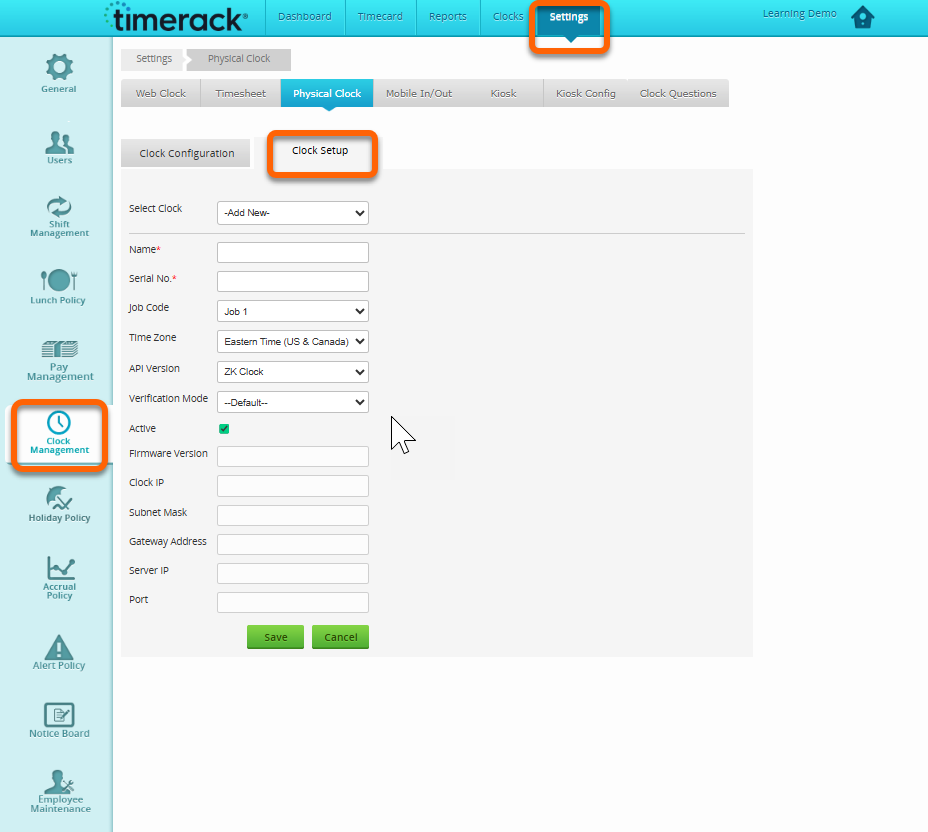
3) Select the clock you would like to edit from the Select Clock drop down and then navigate to the drop down next to the Verification Mode to choose the method you would like for the TR905 clock you have selected.
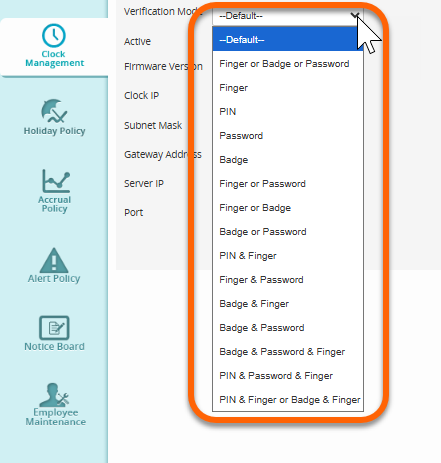
4) Select Save to save your selected verification method.
Please note it may take several minutes for updates to sync to the TR905 clock.
Employee Level
1) Click Timecard in the top navigation menu and then choose the Employee Data option on the left to view the Employee Profile.
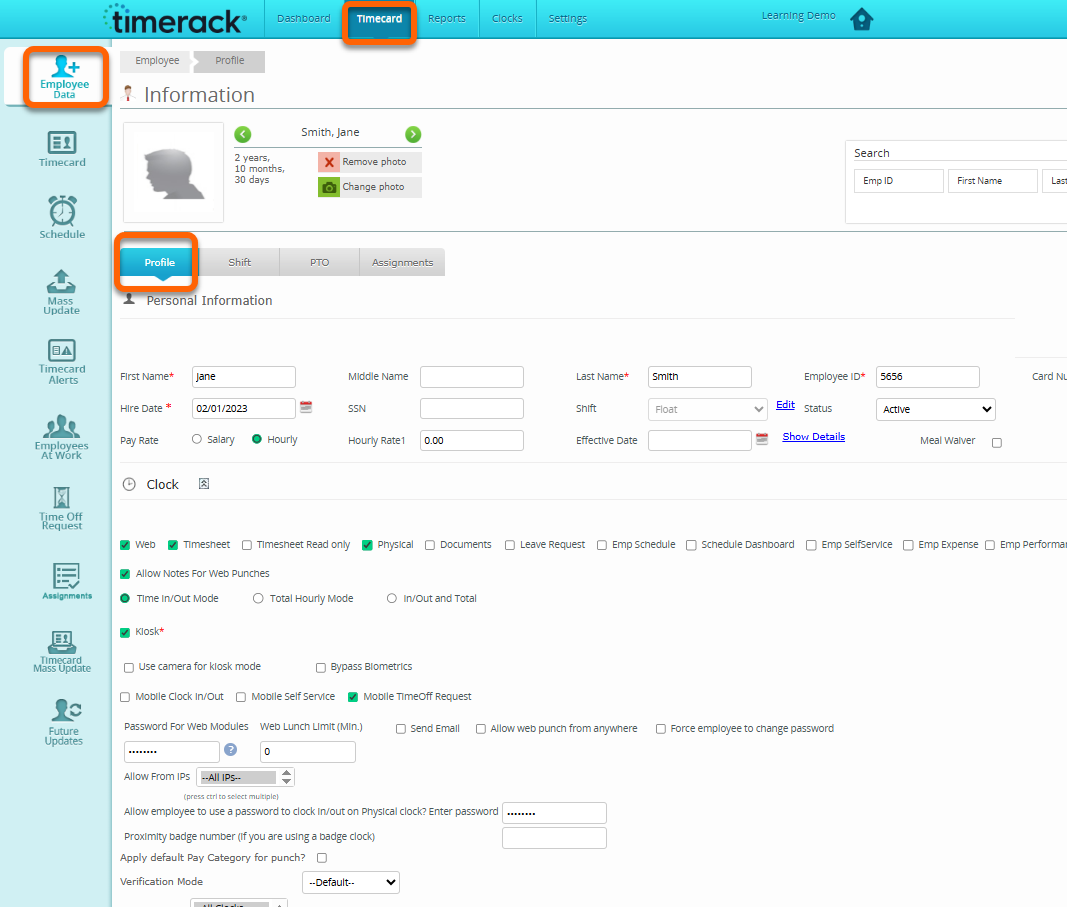
2) Locate the Verification Mode drop down under the Clock Section of the Employee Profile.
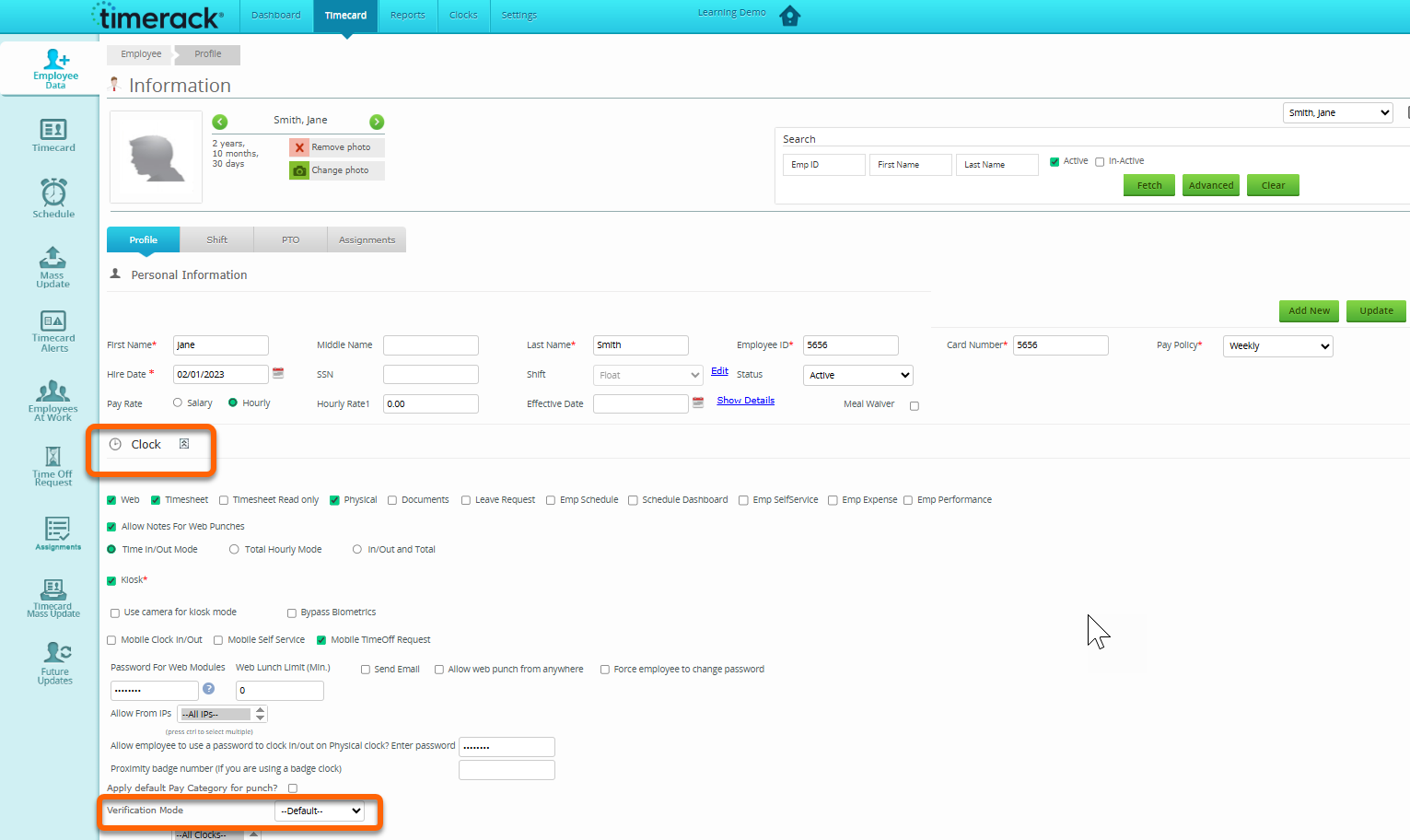
3) Navigate to the drop down next to the Verification Mode to choose the method you would like selected for the Employee you are viewing.
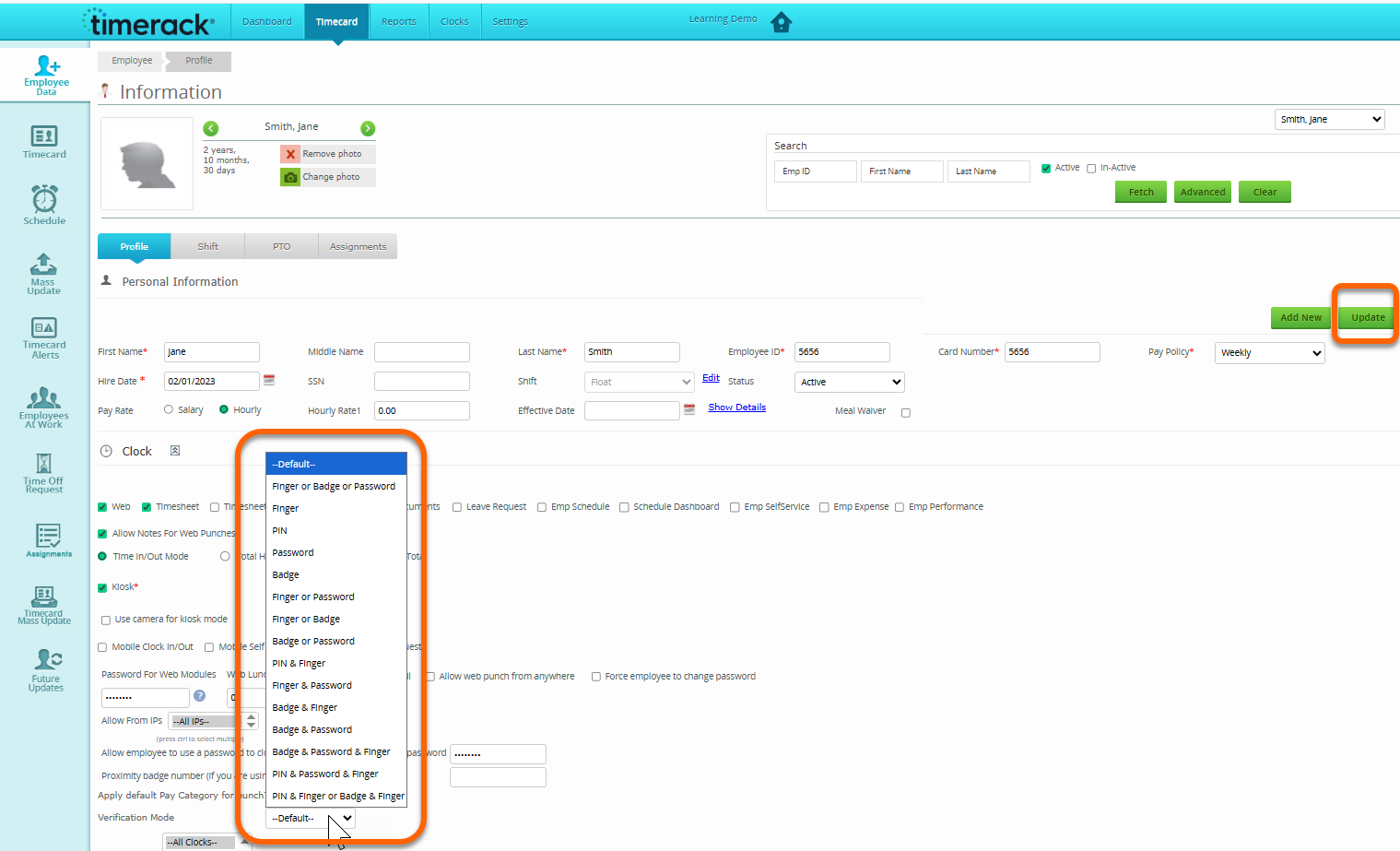
4) Select Update to save your selected verification method.
Please note it may take several minutes for updates to sync to the employee on the TR905 clock(s).