
Clocks such as TR905 can use various methods (PIN, Card Number, Fingerprint, Facial Recognition, Proximity Badge) to verify a user's (employee's) identity when they punch. Each method or combination of methods of identity verification is termed the "Verification Mode" and is a command with a corresponding value in the clock server.
The Clock Commands Log is a report (ID 896) in the Data Export Manager containing all server commands for a selected clock terminal that can be used to determine the configured Verification Mode for users in that clock.
Punch verification mode can be Partner-, Client- or Clock-specific.
This article explains how to retrieve the Clock Commands Log and determine the Verification Mode configured for a clock.
Determine the Clock ID
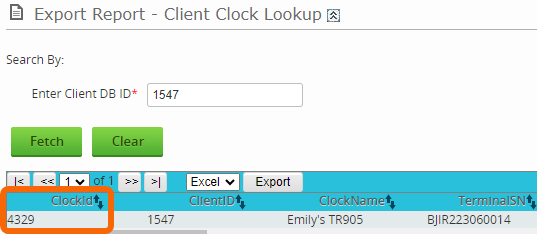
The Clock Commands Log report requires the Clock ID in order to retrieve the data. Use the Client Clock Lookup (ID 895) query to find the Clock ID. Clock ID is different from the Serial Number.
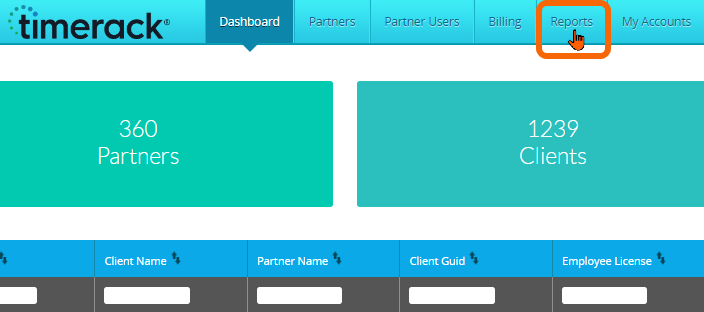
1) From the Admin Dashboard, navigate to Reports.
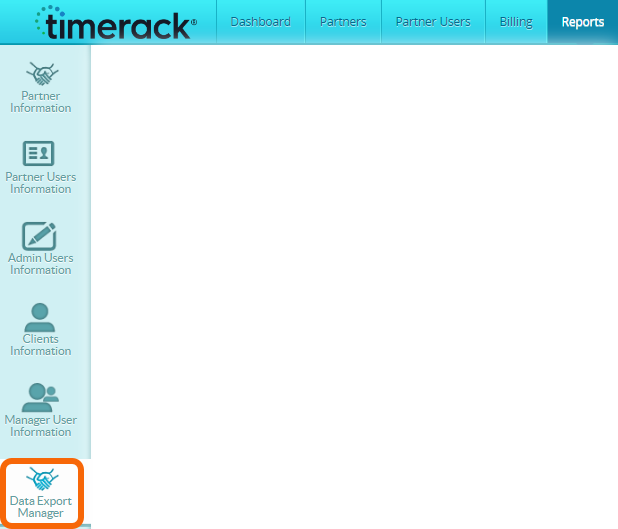
2) Choose the Data Export Manager option on the left.
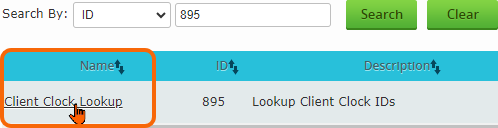
3) Retrieve report with ID 895 from the Report List in the lower portion of the page.

4) Click on the report Name to open the report.
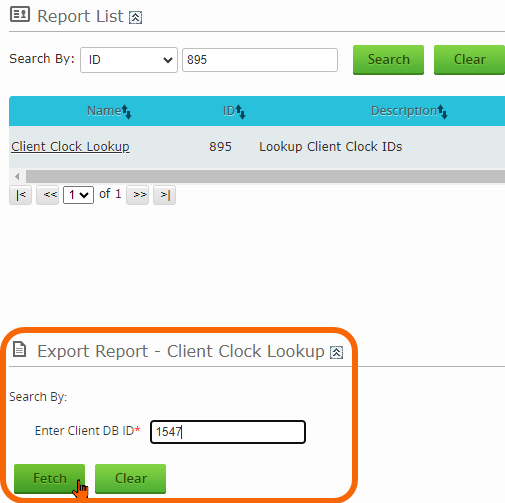
5) Enter the Client ID (find by hovering your cursor over the Client name on the Admin Dashboard) for the applicable portal and then click the Fetch button to execute.
6) Find the Clock ID in the ClockId column and copy or make a note of it.
Run the Clock Commands Log report
1) Retrieve report with ID 896 from the Report List.

2) Click on the report Name to open the report.

3) Enter the Clock ID and then click the Fetch button to execute.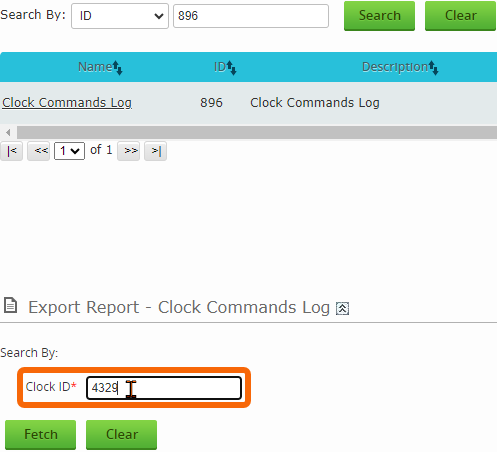
| 4) Verification mode commands are found under DATA UPDATE USERINFO. Locate DATA UPDATE USERINFO for the applicable user (employee) and then check the value for VerifyMode against the verification mode values list (below). | 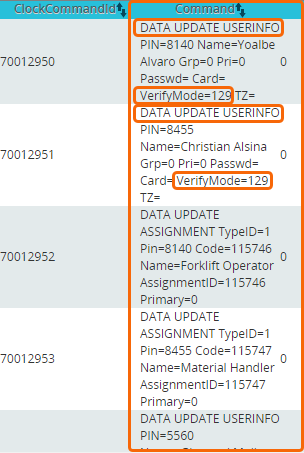 |
TR905 Verification Mode Values
Verify Mode | Configured Value | Default Mapped Value in AttLog |
Finger | Badge | Password | 128 | n/a |
Finger | 129 | 1 |
PIN | 130 | 3 |
Password | 131 | 0 |
Badge | 132 | 2 |
Finger | Password | 133 | n/a |
Finger | Badge | 134 | n/a |
Badge | Password | 135 | n/a |
PIN & Fingerprint | 136 | 4 |
Finger & Password | 137 | 5 |
Badge & Finger | 138 | 6 |
Badge & Password | 139 | 7 |
Badge & Password & Finger | 140 | 8 |
PIN & Password & Finger | 141 | 9 |
PIN Finger | Badge Finger | 142 | n/a |
Face | 143 | n/a |
Face & Finger | 144 | 16** |
Face & Password | 145 | 17** |
Face & Badge | 146 | n/a |
Face & Finger & Badge | 147 | n/a |
Face & Finger & Password | 148 | n/a |