This article explains how to configure a portal integrated with Apex software (Employer On The Go).
About the integration
General
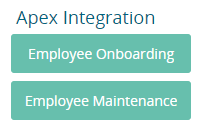
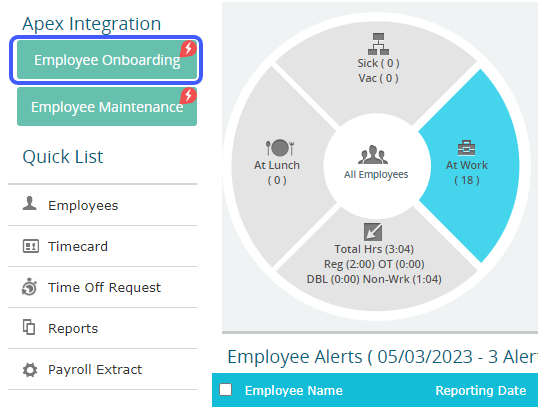
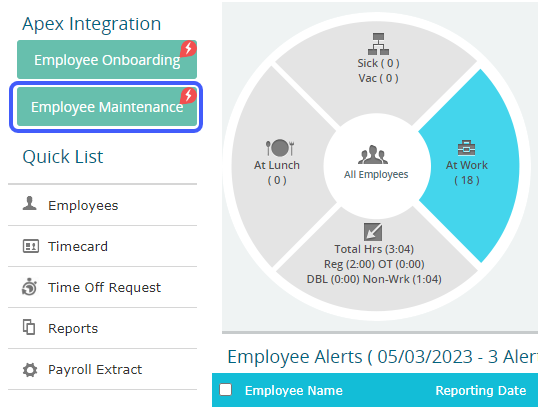
Apex has its own page in the Timecard section of the portal and its own buttons on the client Dashboard. A lightning bolt bubble will display on a button if there are updates from Apex waiting to be accepted into Timerack.
 |  |
Activation
Timerack Client Key must match the client’s Company ID in the Apex system. Each new Apex bureau must provide Timerack Onboarding team with one-time credentials to establish the initial integration and follow these instructions to enable each client to connect using the API login. Employees onboarded from Apex using the API will have employee information migrated with them.
Payroll
Payroll is run from the Apex page in the Timecard section rather than from the Payroll page of the Reports section, as is done with other integrations and direct clients. The Export Payroll button sends payroll data directly to Apex.
The Pay Period dropdown menu displays the Pay Periods from Timerack which correspond to currently open Payroll Periods in Apex.
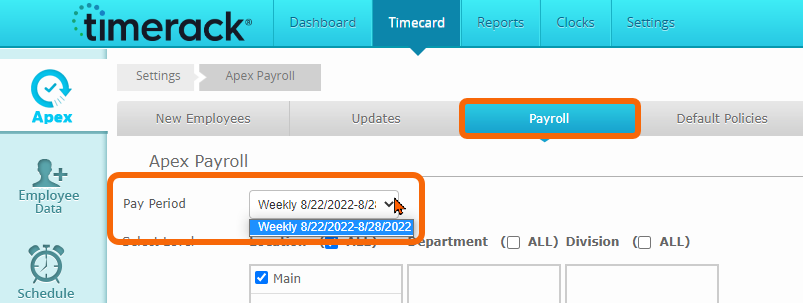
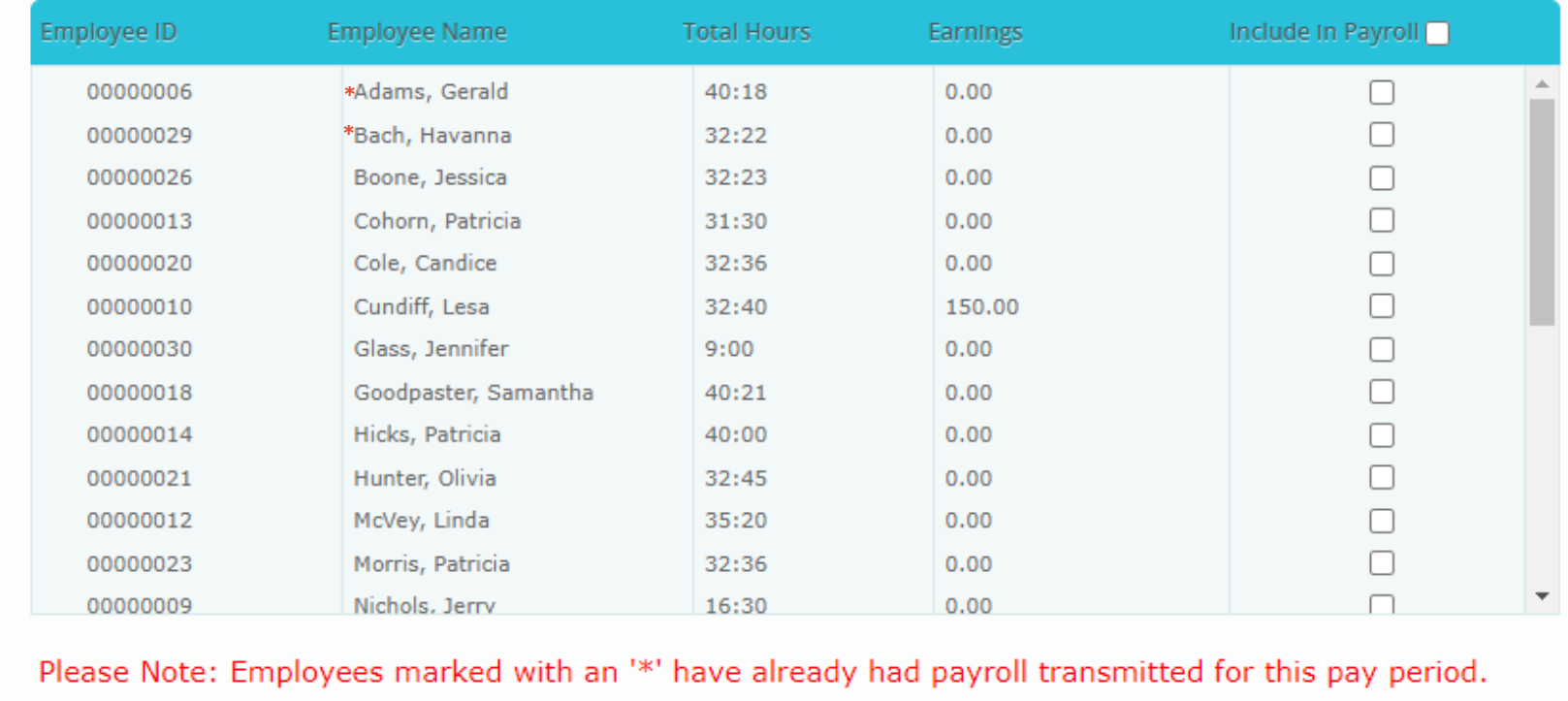
Employees who have already had their time data exported to Apex will be marked with an asterisk (*) in front of their name.
Portal Configuration
Payroll Bridge
Apex
Organization Structure Levels
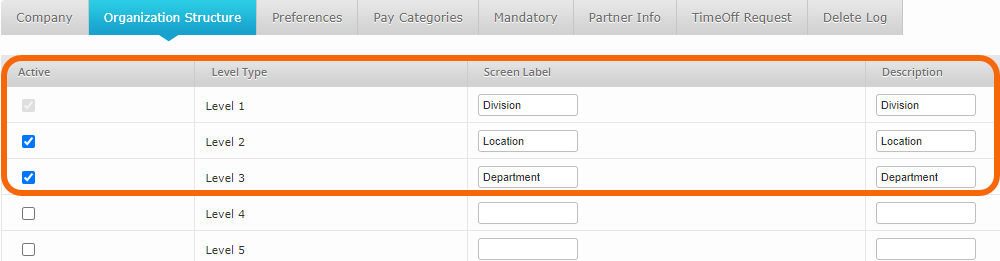
Levels one, two, and three are integrated. Apex client requires that the Timerack Organization Structure is configured with Division, Location, and Department, in that order. The values in each must match Apex exactly.
Default Pay Categories and Pay Codes
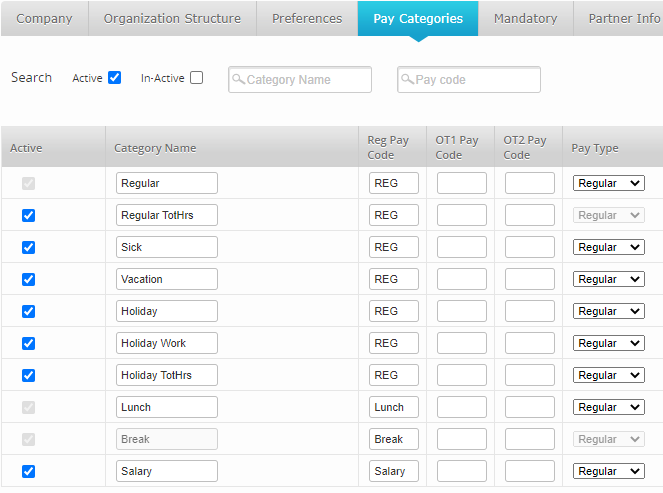
To map Timerack Pay Categories with Apex Earning Codes, enter the Apex three-digit Earning Code into the Reg Pay Code field. Unmapped codes will be sent to Apex with the default Earning Code for Regular Hours, or '011'. Overtime Hours will be sent over with the Apex Earning Code for Overtime Hours '012', regardless of mapping.
Pay Period
Pay Period information is calculated by Pay Frequency data from Apex. The Payroll Start Date will be pulled from the employee’s Next Pay Period Start Date, and along with the Frequency will be used to map to the Pay Period configured in Timerack. If an existing Pay Period in Timerack matches the start date and frequency of the incoming employee’s pay schedule, it will be assigned. Otherwise, a new Pay Period will be automatically created in Timerack upon the employee’s acceptance.
New Employees
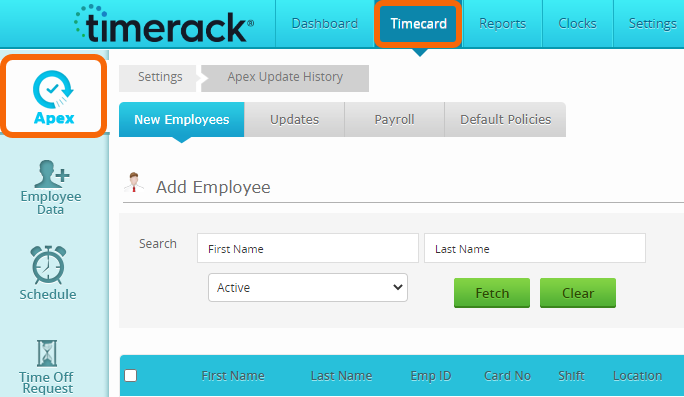
Incoming employees are accessed by clicking the Employee Onboarding button on the Dashboard or by navigating to Timecard>Apex>New Employees.
 | 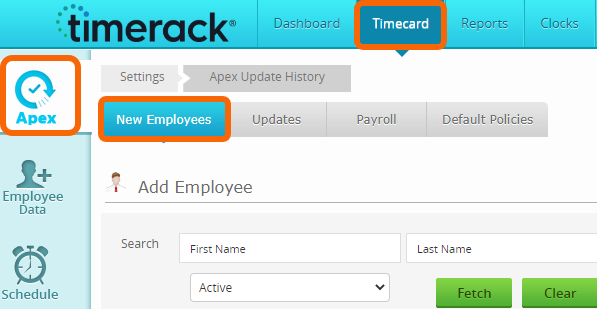 |
Click the Pull Updates button at the bottom of the page to retrieve new employees from Apex. Fields imported from Apex include Name, Email, Employee ID, Address, Hire Date, Location, Pay Information, Department, Division, Position, and Pay Period information. Essential columns are displayed initially, and more columns can be displayed by marking Detail View checkbox above the list in the upper right.
To accept an employee(s) into Timerack, mark the checkbox(es) above their name and then click the Accept button at the bottom of the page.
Employee Updates
Updates to employee records are accessed by clicking the Employee Maintenance button on the Dashboard or by navigating to Timecard>Apex>Updates.
 | 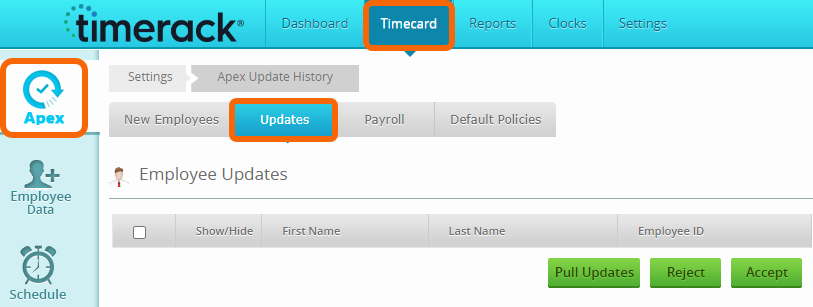 |
Click the Pull Updates button to retrieve employee updates from Apex. Expanding the employee’s row will display the changes to their profile coming from Apex. Mark the employee’s checkbox along with whichever updates you want to accept and click the Accept button to approve the updates. Pay Periods, Locations, Division, Departments, and Positions that are not currently in Timerack will be automatically created when the records are accepted.
Default Policies
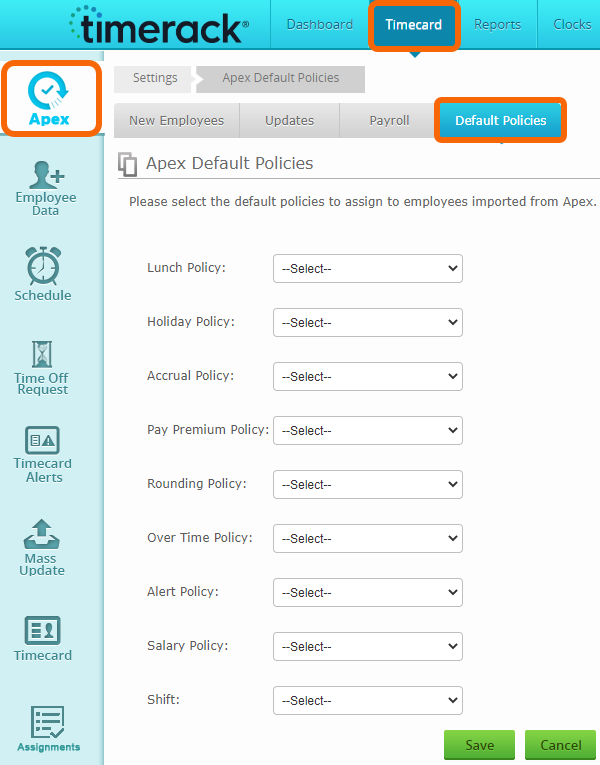
Default Policies and the default Shift for incoming employees are configured on the Default Policies tab of the Apex page. Use each dropdown menu to select a Policy and then click the Save button.
Default Policies will be applied to newly onboarded employees from the New Employees tab. Default Policies does not interact with Mandatory Fields settings. If an employee is accepted without Default Policies configured, a user must apply the appropriate Policies on the Employee Profile(s) directly or via Mass Update.