
From the Alert Policy Tab, a user can select system defined alerts that will inform manager users of employee's daily and weekly activities. Alerts facilitate the process of implementing rules and standards for employees to follow. Manager users can easily monitor employee's punctuality, performance, work hours, absenteeism, and overtime. Employee alerts appear in several locations in the system including the Dashboard, the Timecard Alerts Tab, and in each employee timecard designated with a red tringle icon.
The following are the types of alerts predefined in the system:
• Missing Punch Alerts • Schedule Alerts• Lunch Alerts• Break Alerts• Overtime Alerts• Tardy (Late Arrivals) Alerts•
Miscellaneous Alerts


1. Click the Settings tab at the top.
2. Click the Alert Policy tab on the left-hand side.
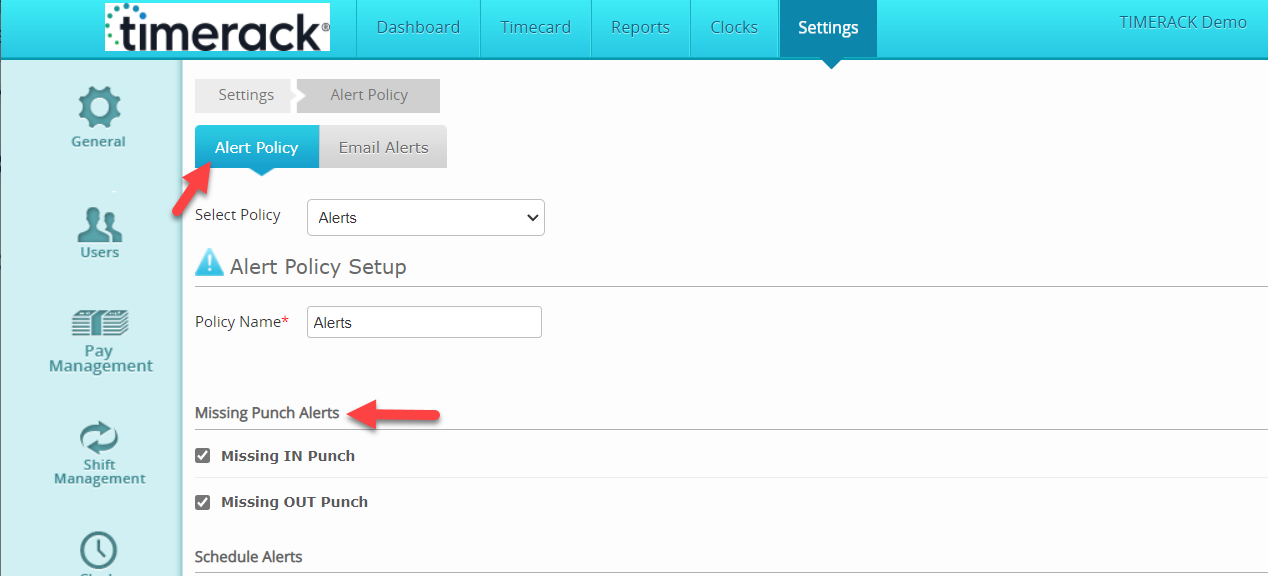
3. Click the Alert Policy subtab.
4. View the Missing Punch Alert option.
Missing Punch Alert Definitions
If an employee misses a punch throughout the day, an alert will be generated on their timecard. It is suggested that these alerts are ALWAYS set up in a policy and applied to ALL employees who must clock IN and Out.
Missing IN Punch: If an employee misses their IN punch, an alert will be generated on their time card.
Missing OUT Punch: If an employee misses their OUT punch, an alert will be generated on their timecard.
Schedule Alert Definitions
These alerts are generated for employees who have a schedule (not shift). A schedule must FIRST be created by a manager user for an employee before any of these alerts can be generated by the system.

Punch Before Scheduled Time: This alerts is generated on an employee's time card if the employee's scheduled arrival time minus their actual arrival time is greater than the specified amount of minutes (Scheduled time-Actual Arrival Time > X Minutes).
Example: Employee's scheduled time is 9:00 am but clocks in at 8:45 am and the X minutes = 10. Therefore, 9:00 am-8:45 am = 15 minutes. Since 15 minutes > 10 minutes, an alert will be generated.
Punch On Day Off: This alerts is generated on an employee's time card if an employee punches in on a day they were not scheduled to work.
Lunch Alert Definitions
These alerts are generated to keep lunch timings according to your company's requirements.
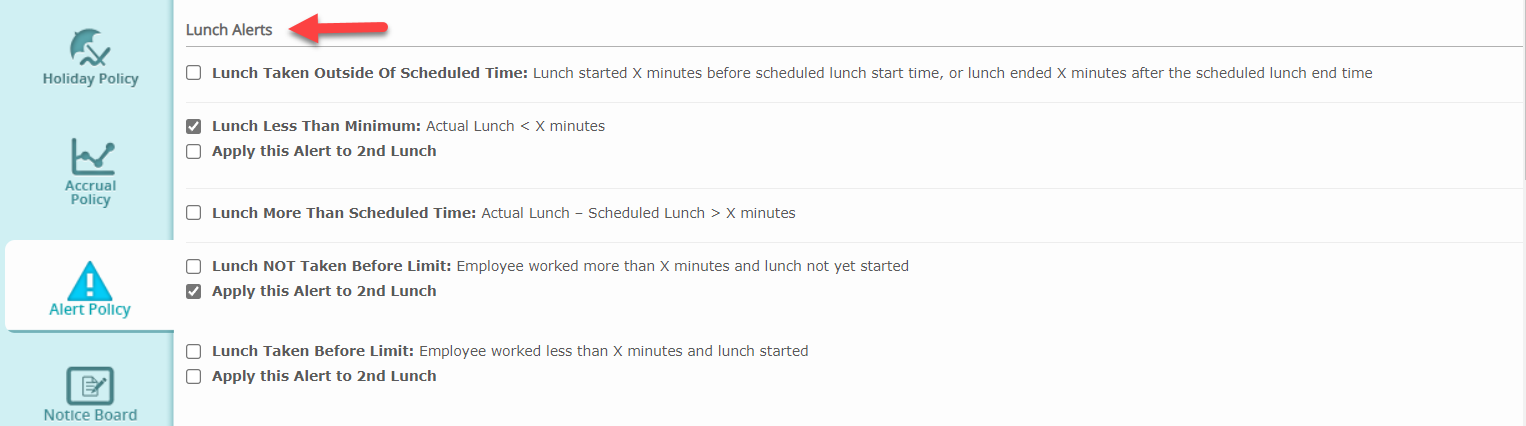
Lunch Taken Outside Of Scheduled Time: This alerts is generated on an employee's time card if an employee starts their scheduled lunch BEFORE the specified number of minutes before OR ends their scheduled lunch AFTER the specified number of minutes.
Example 1: Employee's scheduled lunch time is 1:00 pm but clocks out for lunch at 12:50 pm and the X minutes = 5. An alert will be generated because they clocked out for lunch before the 5 minutes defined in the system.
Example 2: Employee's scheduled lunch end time is 2:00 pm but clocks in from lunch at 2:10 pm and the X minutes = 5. An alert will be generated because they clocked back in from lunch after the 5 minutes defined in the system.
Lunch Less Than Minimum: This alerts is generated on an employee's time card if an employee's lunch is LESS than the minutes specified for this alert.
Lunch More Than Scheduled Time: This alerts is generated on an employee's time card if an employee's actual lunch duration minus their scheduled lunch duration is greater than the specified amount of minutes. (Actual lunch duration time-Scheduled lunch duration > X Minutes).
Example: Employee's scheduled lunch duration is 30 minutes, but their actual lunch duration was 40 minutes and X minutes =5. Therefore, 40 minutes-30 minutes = 10 minutes. Since 10 minutes > 5 minutes, an alert will be generated.
Lunch NOT Taken Before Limit: This alerts is generated on an employee's time card if an employee does not take a lunch AFTER the specified minutes.
Break Alerts Definitions
These alerts are generated if employees are required to clock IN and OUT for break.

Break NOT Taken: This alerts is generated on an employee's time card if they have not clocked OUT and back IN from their scheduled break.
Break Longer Than Limit: This alerts is generated on an employee's time card if their break is longer than the specified amount. Over Time Alert DefinitionOvertime alerts are designed to alert manager users of employees who will be reaching an overtime threshold or who have already reached overtime. (Overtime policies are set up under Settings >> Pay Management >> Overtime)
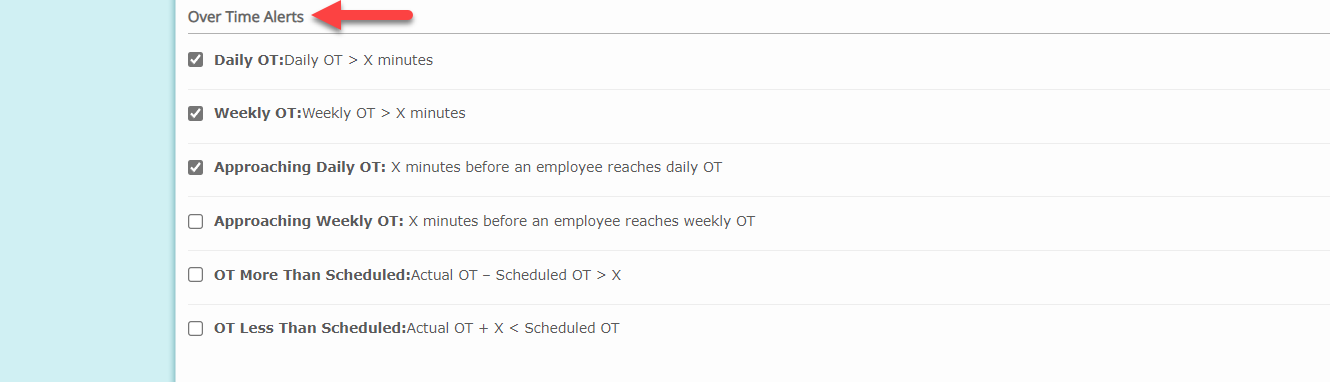
Daily OT Alert: This alerts is generated on an employee's time card if an employee exceeds the predefined daily overtime limit by the specified number of minutes (Daily OT > X Minutes). If an alert should be raised by the system as soon as the employee reaches the daily overtime limit, you may enter "0" in the minute's field.
Example: Employee's total time worked in a day is 8:10, Daily overtime is anything above 8 hours, and X=5 minutes. An alert will be raised once an employee reaches 8:05 hours worked.
Weekly OT Alert: This alerts is generated on an employee's time card if an employee exceeds the predefined weekly overtime limit by the specified number of minutes (Weekly OT > X Minutes). If an alert should be raised by the system as soon as the employee reaches the weekly overtime limit, you may enter "0" in the minute's field.
Example: Employee's total time worked in a week is 40:25, weekly overtime is anything above 40 hours, and X=10 minutes. An alert will be raised once an employee reaches 40:10 hours worked.
Approaching Daily OT: This alerts is generated on an employee's time card "X" minutes before an employee is about to reach their daily OT.
Example: If an employee's daily overtime is 8 hours and X=30 minutes, an alert will be raised once an employee has reached 7:30 hours worked for the day.
Approaching Weekly OT: This alerts is generated on an employee's time card "X" minutes before an employee is about to reach their weekly OT.
Example: If an employee's weekly overtime is 40 hours and X=30 minutes, an alert will be raised once an employee has reached 39:30 hours worked for the week.
OT More Than Scheduled: Raise alert if "Actual OT - Scheduled OT" > X, which means if employees actual OT which will be defined in daily OT (OT Policy) - (minus) employee's scheduled OT which is assumed as 8 Hrs. > (Greater than) X minutes then an alert will be generate on timecard.
OT Less Than Scheduled: Raise alert if "Actual OT + X < Scheduled OT" > X, which means if employees actual OT which will be defined in daily OT (OT Policy) + (Plus) employee's scheduled OT which is assumed as 8 Hrs. > (Greater than) X minutes then an alert will be generate on timecard.
Tardy (Late Arrivals) Alerts Definitions
Tardy alerts allow manager users to monitor employee punctuality.

Late Arrival: This alerts is generated on an employee's time card if an employee's arrival time (after rounding) minus their scheduled arrival time is greater than the specified amount of minutes. (Actual arrival time (after rounding)-scheduled arrival time > X minutes)
Example: if an employee's arrival time is 9:30 am (after rounding), their scheduled arrival time is 9:00 an, and X=15 minutes, an alert would be raised because 9:30 am-9:00 am = 30 minutes > 15 minutes.
Left Early: This alerts is generated on an employee's time card if an employee's scheduled out time minutes their actual out time (after rounding) is greater than the specified amount of minutes. (Scheduled out time-actual out time (after rounding) > X minutes). This alert will worked based an employee's schedule created by a manager user. If the schedules functionality is not being used, the alert will work according to the employee's assigned shift.
Example: if an employee's scheduled out time is 5 pm, their actual punch out time is 4:30 pm (after rounding), and X=15 minutes, an alert would be raised because 5 pm-4:30 pm = 30 minutes > 15 minutes.
Miscellaneous Alert Definitions
In this user can set alerts for probation period and negative PTO balance.
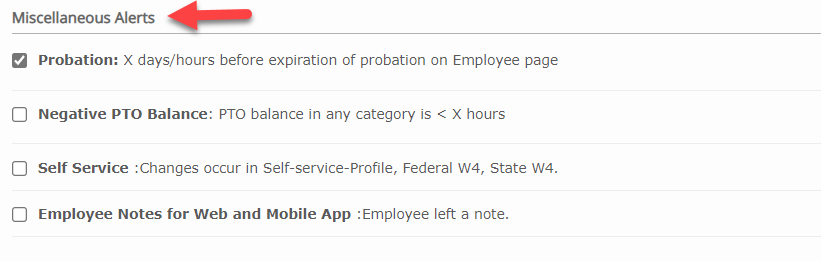
Probation: This alerts is generated on an employee's time card X days or hours (depending on what was specified in their employee data) before the employee reaches the end of their probation period.
Example 1: If an employee's probation period entered in their employee data is 90 days and X=5 for the alert, then an alert will be generated 5 days before the employee's 90 day probation period is over.
Example 2: If an employee's probation period entered in their employee data is 500 hours and X=50 for the alert, then an alert will be generated 50 hours before the employee's 500 hour probation period is over.
Negative PTO Balance: This alerts is generated on an employee's time card if the balance on any accruable pay item is less than the specified amount of hours. (Accruable pay item balance < X hours). If an alert should generate once an employee reaches a balance of 0 hours or less, you may activate the alert and leave the field at "00:00".
EMAIL ALERTS
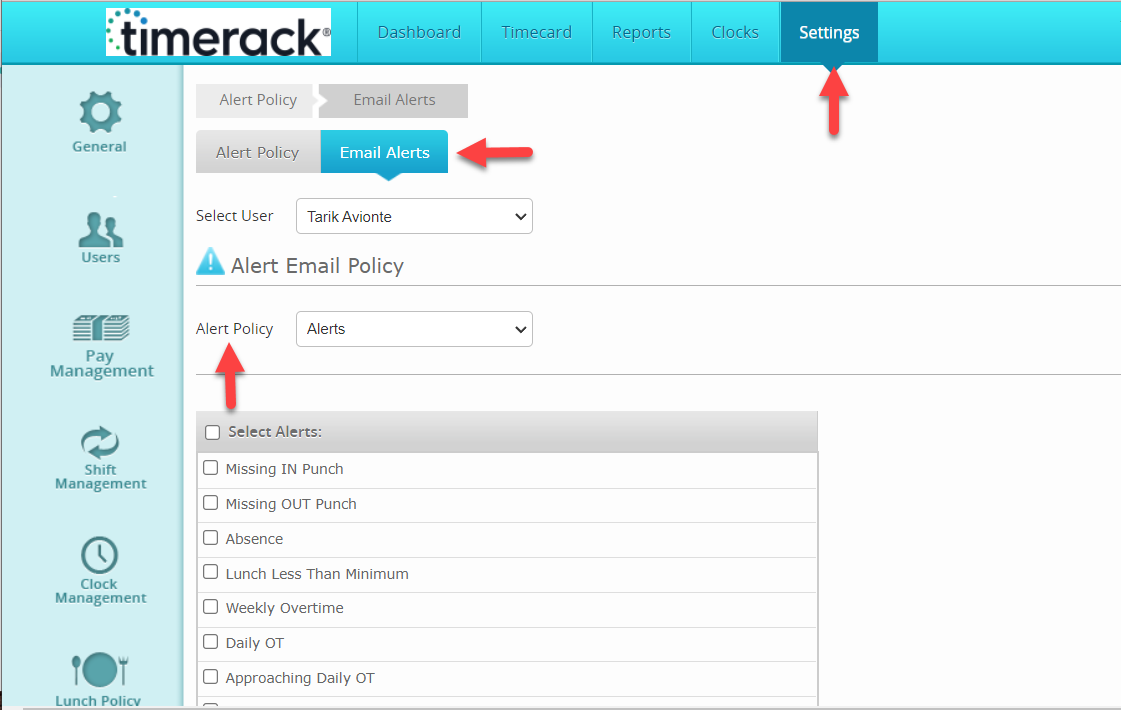
5. Click the Settings tab at the top .
6. Click the Alert Policy tab on the left-hand side
7. Click the Email Alerts subtab.
Alerts generated by the system can be emailed to manager users. To set up alerts to be emailed to manager users:
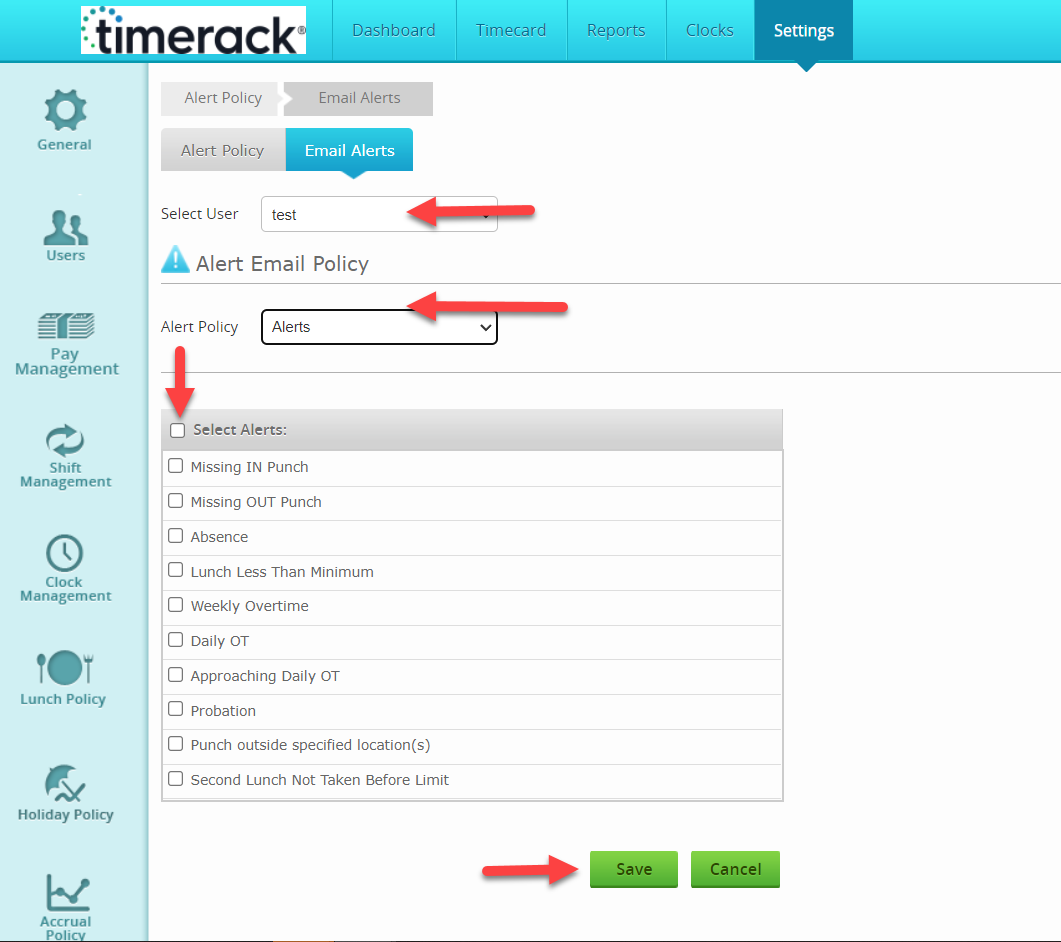
8. From the "Select User" drop down menu, select the manager who will receive the alerts.
- (To add or manage users’ access, go to Settings >> Users >> User Profile or User Setup or Employee Assignment).
9. From the "Alert Policy" drop down menu, select the alert policy which will be used and emailed to manager users.
10. Based on the alert policy selected, the alerts activated for that specific policy will appear in a table. Select the specific alerts which you want emailed. If all alerts should be emailed to the manager, select the "Select Alerts" checkbox and all the alerts will automatically be selected.
11. Click the Save button. Repeat for additional manager users who need to receive emailed alerts.